News Countdown Clock
Free MT5 indicator that counts down to the next high-impact calendar event, shades the news window and alerts you. Lab-tested on MT5 build 6230.
- Repainted
- Not tested
- Signals / week
- —
- Tested on
- —
- Tested
- 2026-10-10
Overview
The News Countdown Clock indicator for MT5 is a free tool for intraday traders. It gives you a live countdown to the next high-impact release for your chart's currencies, shades a ±30-minute news window and sends two alerts: one 5 minutes before the release and one at the release. It also marks the release time with a vertical line, and by default it tracks high-importance events only. Lab-tested: version 1.00 on MT5 build 6230, 2026-10-10.
What it draws on your chart
The indicator reads MT5's built-in economic calendar, which lists scheduled releases with their importance, forecast and previous values. It does not use an outside news feed. It draws three things:
- News Window: a rectangle that runs from
PreWindowMinutesbefore the tracked event toPostWindowMinutesafter it. - Release Marker: a vertical line at the scheduled release time with a shortened event name.
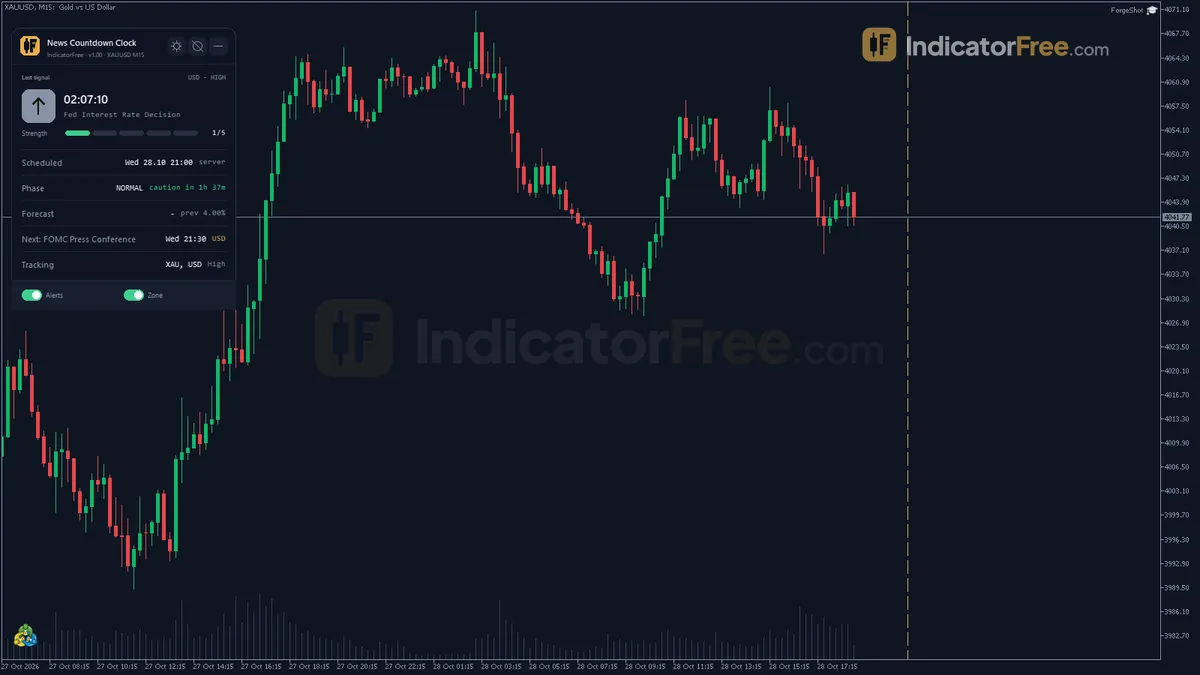
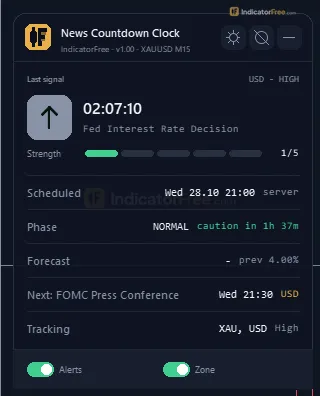
- Countdown panel: shows the next event with its currency, importance, server time, current phase, forecast and previous value. After the release it also shows the actual value and how far it was from the forecast. It can also list the event after that one.
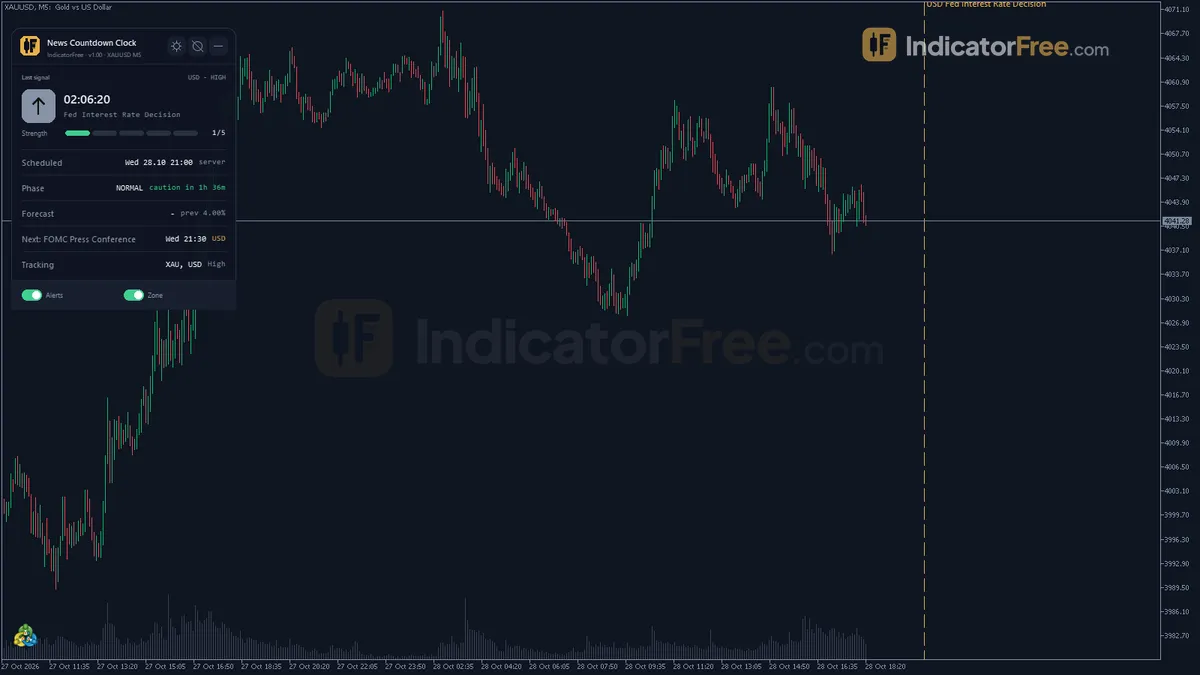
The chart below shows how the rectangle and the marker sit around a release on an M5 chart with default settings.
What the Lab checked
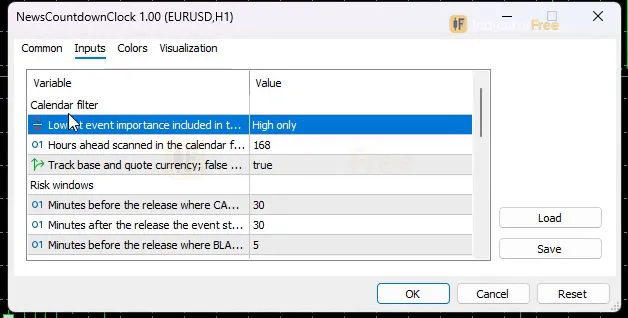
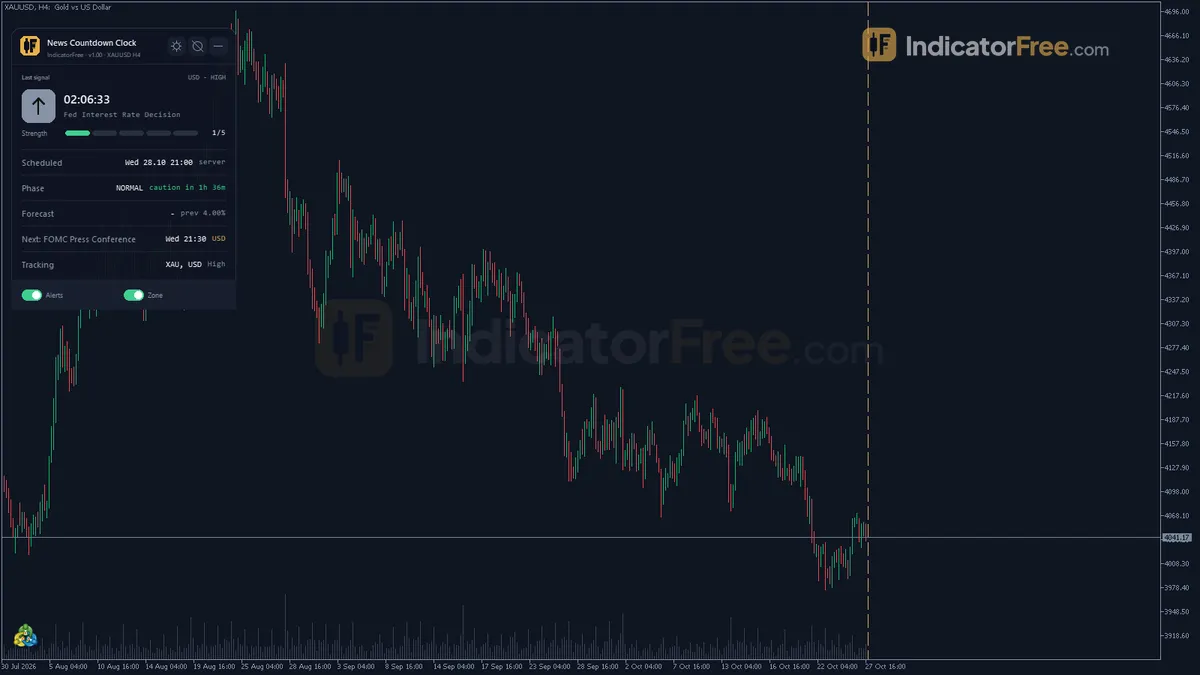
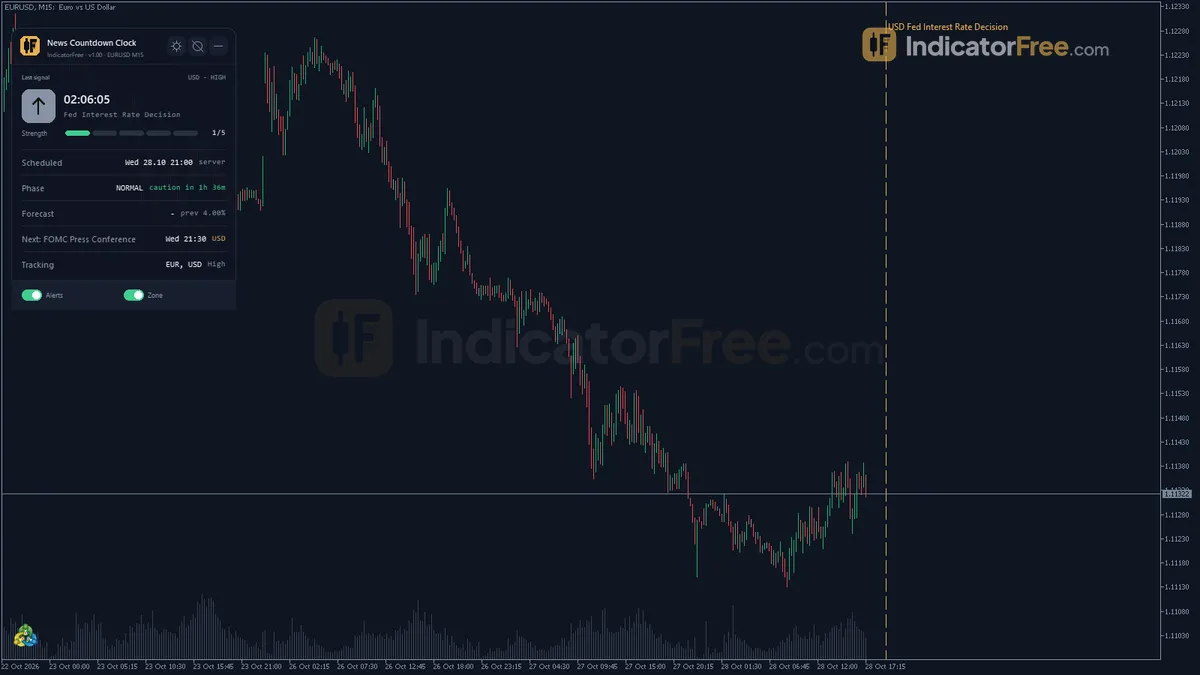
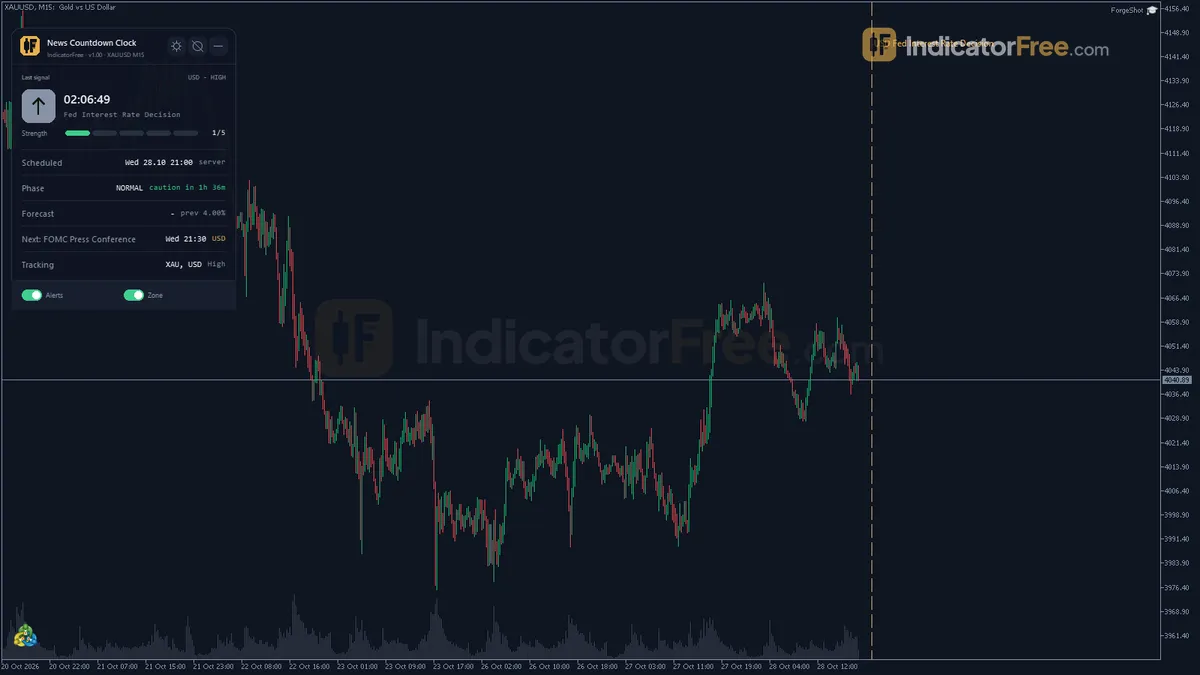
The Lab ran version 1.00 (146.7 KB) on MT5 build 6230. It captured the tool on the H4 and M5 timeframes, on EURUSD, and zoomed out over several weeks of history, along with the default inputs window and a close-up of the panel. These screenshots show what the tool displays. The Lab did not record timed checks of four things: whether the phase changes at the right minute, whether each of the two alerts fires once, whether the actual-vs-forecast line fills in after a release, and whether RestoreTheme brings the chart colors back. The page describes these behaviours, but the Lab did not measure them.
The indicator gives no buy or sell signals, so the Lab has nothing to measure for win rate or signal repaint.
Who it helps
It fits day traders, scalpers and swing traders who want a warning before a high-impact release reaches their trades.
How it works
- 1Reads the economic calendar for the symbol's currencies, filtered by importance, refreshed every minute.Inputs: MinImportance, LookaheadHours, TrackBothCurrencies
- 2Converts event time to GMT using the broker's server offset and computes the time remaining to each event.
Remaining = Event time - Now - 3Assigns a phase: normal, caution before the event, blackout around it, and cooldown after it.
Blackout from BlackoutPreMinutes before to BlackoutPostMinutes afterInputs: PreWindowMinutes, PostWindowMinutes, BlackoutPreMinutes, BlackoutPostMinutes - 4Shows the countdown to the next event, or the one just released, and optionally the second event.Inputs: ShowSecondEvent, ShowDashboard
- 5Shades the chart bars in each phase and can alert before the event.Inputs: ShowZone, EnableAlert
Specifications
- Platform
- MetaTrader 5
- Version
- 1.00
- Type
- Indicator
- Window
- Main chart
- Draws
- 2 zones, 1 panel
- Alerts
- popup, push, sound
- Repaints
- not tested
- Inputs
- 18
- Tested on
- MT5 build 6230 · 2026-10-10
Repaint test
Repaint: not tested. This indicator draws zone, panel, which the IndicatorFree harness cannot read through iCustom().
IndicatorFree — tested 2026-10-10 · MT5 build 6230. Results come from historical data, not live trading, and do not guarantee future results.
What it draws
- Rectangles (News Window) drawn as chart objects, not buffers — they are not readable by iCustom() in an EA.
- Rectangles (Release Marker) drawn as chart objects, not buffers — they are not readable by iCustom() in an EA.
- An on-chart panel (Countdown); values shown in the panel are not exposed as buffers.
Inputs
| Input | Default | What it does |
|---|---|---|
| MinImportance | High only | Lowest event importance included in the countdown |
| LookaheadHours | 168 | Hours ahead scanned in the calendar for the next event (6-336) |
| TrackBothCurrencies | true | Track base and quote currency; false = quote (profit) currency only |
| PreWindowMinutes | 30 | Minutes before the release where CAUTION starts and the zone begins (0-180) |
| PostWindowMinutes | 30 | Minutes after the release the event stays tracked, zone ends here (0-180) |
| BlackoutPreMinutes | 5 | Minutes before the release where BLACKOUT starts (0-60, max PreWindowMinutes) |
| BlackoutPostMinutes | 5 | Minutes after the release BLACKOUT still lasts (0-60, max PostWindowMinutes) |
| ShowZone | true | Draw the news window rectangle and the release line on the chart |
| EnableAlert | true | Master switch for the two one-shot alerts (before the event and at release) |
| AlertMinutesBefore | 5 | Minutes before the release for the first alert (1-60, max PreWindowMinutes) |
| AlertPopup | true | Popup alert in the terminal |
| AlertPush | false | Push notification to MT5 mobile (enable notifications in the terminal options) |
| AlertSound | true | Play a sound with the alert |
| ShowDashboard | true | Show the on-chart panel |
| ShowSecondEvent | true | Show the event after the tracked one on the panel |
| PanelScale | 1 | Panel size multiplier (DPI is applied automatically) |
| Theme | Dark | Chart color theme |
| RestoreTheme | true | Restore the original chart colors when the indicator is removed |
How to read it
Install: copy the file into MQL5/Indicators, restart MT5 or refresh the Navigator, and drag News Countdown Clock onto the chart. It runs in the main chart window, not a separate subwindow. MT5's calendar data needs a connection to your broker, so make sure the terminal is connected. Then check the default inputs against the 'Inputs window in MetaTrader 5 (default settings)' screenshot.
The four phases and how to read them
About once a minute, the indicator reads the calendar for the symbol's currencies and keeps the events that meet your importance filter. It converts each event time using your broker's server offset and works out Remaining = Event time − Now. Based on that time, it puts the tracked event into one of four phases:
- NORMAL: no tracked event is close.
- CAUTION: starts
PreWindowMinutesbefore the release. The News Window rectangle starts here. - BLACKOUT: runs from
BlackoutPreMinutesbefore the release toBlackoutPostMinutesafter it. - COOLDOWN: runs from the end of the blackout until
PostWindowMinutesafter the release, when the event stops being tracked and the rectangle ends.
The timeline below shows where each phase and alert falls with the default inputs.
Reading the panel
The most important line is the phase, because it tells you what to do right now. The countdown and the server time tell you how long you have. Forecast and previous show what the market expects. After the release, the panel adds the actual value and its deviation (actual minus forecast). With ShowSecondEvent on, the panel also shows the event after the tracked one, so you can see when two releases fall close together.
Inputs to change first
MinImportance(default High only): sets the lowest importance the countdown includes. Lower it if you also want medium releases. Expect more caution periods if you do.TrackBothCurrencies(default true): on EURUSD this tracks both EUR and USD events. Set it to false to track only the quote currency, which is USD on EURUSD.PreWindowMinutes/PostWindowMinutes(0-180, default 30): set how long the tracked window lasts before and after the release.BlackoutPreMinutes/BlackoutPostMinutes(0-60, default 5): set how long the blackout lasts. Neither can be longer than its matching window input.LookaheadHours(6-336, default 168): sets how far ahead the indicator looks for the next event.PanelScale,Theme,ShowDashboard,ShowZone: change how the panel and chart look.RestoreThemeputs back your original chart colors when you remove the indicator.
Alerts
With EnableAlert on, you get two alerts for each tracked event. Each fires once:
- the first
AlertMinutesBeforeminutes before the release (1-60, default 5, and no more thanPreWindowMinutes) - the second at the release itself
How they reach you:
- Popup (
AlertPopup): appears in the terminal. - Sound (
AlertSound): plays a sound with the alert. - Push (
AlertPush): off by default. It sends the alert to the MT5 mobile app once you enable notifications in the terminal options.
A decision rule to start with
- BLACKOUT: don't open new trades.
- CAUTION: decide what to do with open positions on the tracked currencies before the blackout starts. You can close them, reduce them, or leave them with a stop you accept.
- COOLDOWN: read the actual-vs-forecast line first, and wait for the phase to return to NORMAL before trading normal setups again.
A common misread
The times on the panel are in your broker's server time, not your local clock. Read the countdown, not the clock time, when you need to act. Also, the News Window rectangle shows only for the tracked event while it is in CAUTION, BLACKOUT or COOLDOWN. If you don't see one, it doesn't mean no news is coming. Check the countdown instead.
Installation
- 1Download NewsCountdownClock.ex5 from the button above (Google Drive).
- 2In MetaTrader 5: File → Open Data Folder → MQL5 → Indicators. Copy NewsCountdownClock.ex5 there.
- 3Restart MT5 or right-click Indicators in Navigator → Refresh.
- 4Drag News Countdown Clock onto a chart. For push alerts, enable "Allow push notifications" under Tools → Options → Notifications.
- Tested on MT5 build 6230.
Key terms and guides
- Broker
- A broker is the company that opens your trading account, holds your deposit, quotes you buy and sell prices and carries out your orders. It earns money through spreads, commissions or overnight fees.
- Win rate
- Win rate is the share of your closed trades that ended in profit: winning trades divided by total trades, times 100. On its own it does not show whether a strategy makes money, because it ignores how big the wins and losses are.
- Symbol
- A symbol is the short code a trading platform uses to name one tradable market, such as EURUSD for the euro against the US dollar or XAUUSD for gold. Every quote, chart and order is tied to exactly one symbol.
- Price Swing
- A price swing is one move in a single direction, from a turning low to a turning high or the reverse. You measure it in pips from one swing point to the next.
More on this subject: MetaTrader & platform basics guide, terms and tools
User reviews
No reviews yet. Members who download the tool can review it here.
Sign in and download the tool to review it.
Build a checklist with it
News Countdown Clock does one job on the chart: zone / level. Put it on the same chart as the tools below and the IndicatorFree panels merge into one checklist card, ordered trend, zone, signal, risk.
- Trend / contextADXAdds the trend side: which way the market leans before you act on News Countdown Clock.
- Entry signalFalse Breakout TrapAdds the entry signal: the moment to act once News Countdown Clock has set the scene.
The Lab has not tested these combinations. Each tool is tested on its own; the card only lines up what each one says. Free members get 2 new tools a day. If one has to wait until tomorrow, install BlackBox to raise the limit to 5 a day (20 on a live account).
FAQ
Does News Countdown Clock repaint?
Repaint: not tested. This indicator draws zone, panel, which the IndicatorFree harness cannot read through iCustom().
Why can’t my EA read the zones?
Zones and the panel are chart objects, not indicator buffers, so iCustom() does not return them.
How do I get alerts on my phone?
Enter your MetaQuotes ID under Tools → Options → Notifications, tick "Enable push notifications", and keep the push alert input on.
Does the News Countdown Clock need an internet news feed or a website?
No. It reads MT5's built-in economic calendar inside your terminal and checks it about once a minute. If your terminal shows calendar data, the indicator can use it.
Why does the panel show no upcoming event?
Within the `LookaheadHours` window, no event meets your `MinImportance` filter for the chart's currencies. Raise `LookaheadHours` (up to 336) or lower `MinImportance` to include less important events. There are two other possible causes. The symbol's currencies may not be in MT5's calendar. Or `TrackBothCurrencies` may be set to false, so only the quote currency is tracked.
Which timeframe should I use it on?
It works on any timeframe, because the countdown and alerts don't depend on bars. The Lab captured it on M5 and H4. On M5 the rectangle spans about 12 bars. On H4 it covers at most one or two bars, so rely on the panel.
Will it change my chart colors?
Yes. It applies the `Theme` you choose (Dark by default). With `RestoreTheme` left on true, your original colors come back when you remove the indicator.
Can I use it alongside an Expert Advisor on the same chart?
Yes. It only draws a panel, a rectangle and a line on the main chart and doesn't place or close orders. The Lab did not test an EA reading its phases, so set up any news pause in the EA separately.
Changelog
- 1.00Initial release: countdown to the next high-impact economic calendar event for the chart symbol's currencies, read directly from MT5's built-in economic calendar. · 2026-10-10
Final verdict
Verdict: a news-timing tool, not a trading signal
This tool does one job: it keeps scheduled news in view on the chart you trade. It reads MT5's own calendar, so you don't need an outside feed or a separate browser tab. The phase line and the two alerts turn "is there news soon?" into a yes or no you can act on. The actual-vs-forecast line after a release saves you from looking up the number somewhere else.
Limits you should know
- It doesn't predict direction or size of the move, and it doesn't trade or close positions for you.
- It only knows what is in MT5's built-in calendar. Unscheduled news, such as surprise speeches or headlines, never shows up.
- With the default
MinImportanceof High only, medium releases are skipped, even though they can still move a thin market. - On H4 and higher, the default 60-minute window is shorter than a single bar, so the rectangle tells you little there. Rely on the panel instead.
Skip it if
Skip it if the currencies of the symbol you trade don't appear in MT5's calendar. The other cases are listed in the comparison figure below.
Settings to start with
The defaults suit most intraday traders. Two starting points to compare with them (not tested by the Lab):
- M1-M5 scalpers: try
BlackoutPostMinutes15 andPostWindowMinutes45, to keep the blackout running longer after the release. - H1 swing traders: try
PreWindowMinutes60 withAlertMinutesBefore30, so you have time to manage open positions before the release.
The comparison below sums up when the tool earns its place on your chart.
- –You trade intraday on pairs with heavy scheduled news
- –You want a hard no-trade period around releases
- –You hold positions and need a warning before high-impact data
- –You want forecast, previous and actual on the chart
- –You need a signal for direction, not timing
- –You trade news releases on purpose and need data the moment it prints
- –Your risk comes from unscheduled headlines
- –You only trade long-term positions you hold through news