MetaTrader 5
Also called MT5, MetaTrader5, Meta Trader 5, MT5 platform
MetaTrader 5 (MT5) is a trading platform made by MetaQuotes that brokers give to clients for reading charts, placing orders and running automated strategies in forex, metals, indices, stocks and whatever other markets that broker offers.
MetaTrader 5 is software, not a broker. The prices, costs, symbols and trading hours you see come from the broker's server you log into, so two traders on the same platform can get different conditions. Type the wrong number in one field and the same trade can risk ten times more than you meant, as the example below shows.
What MetaTrader 5 does and does not do
MT5 does four jobs: it shows live prices and charts, sends your orders to the broker, tracks your open positions and balance, and runs programs written in its own language, MQL5.
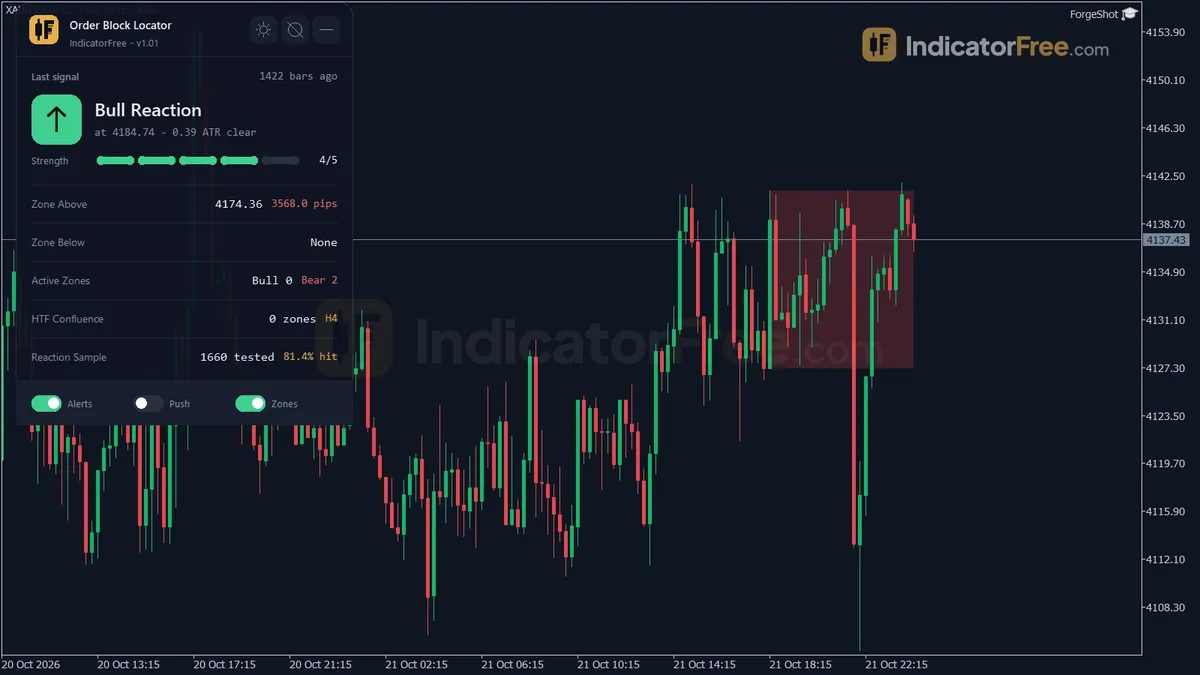
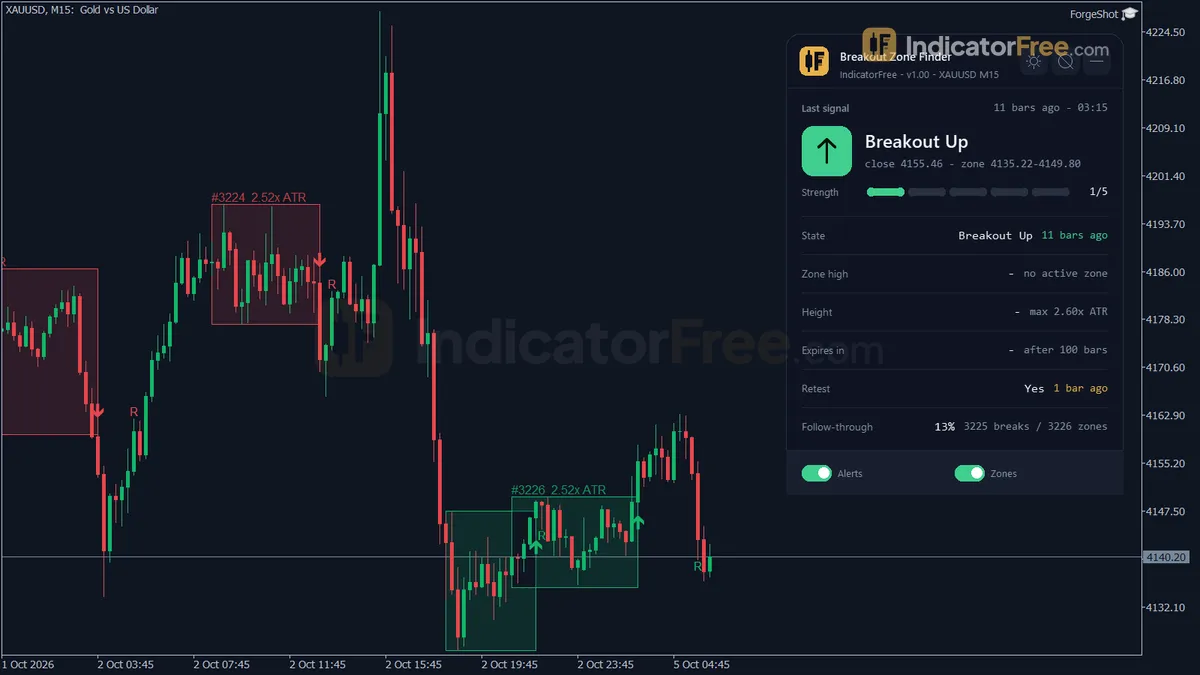
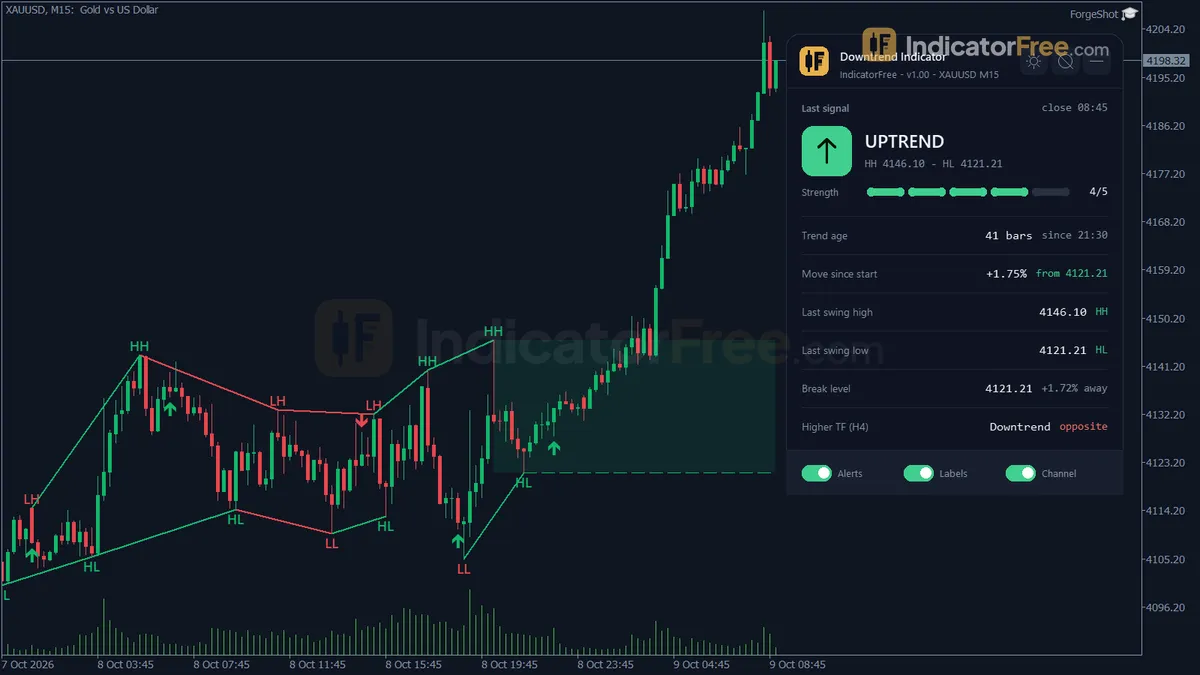
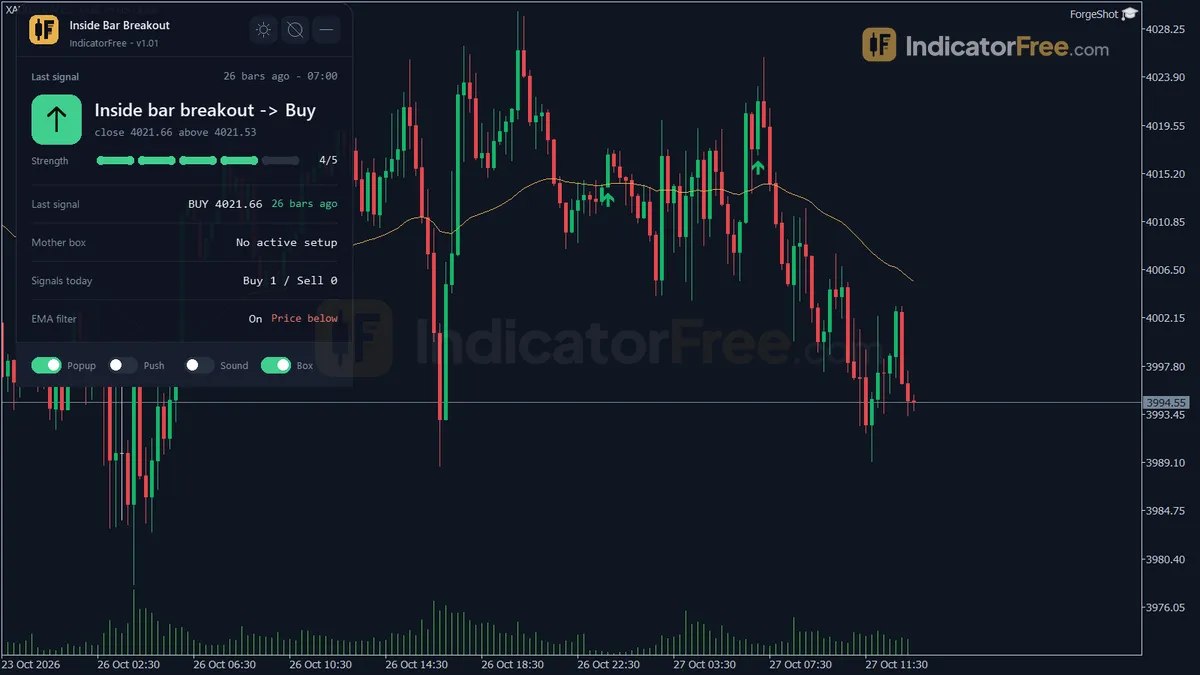
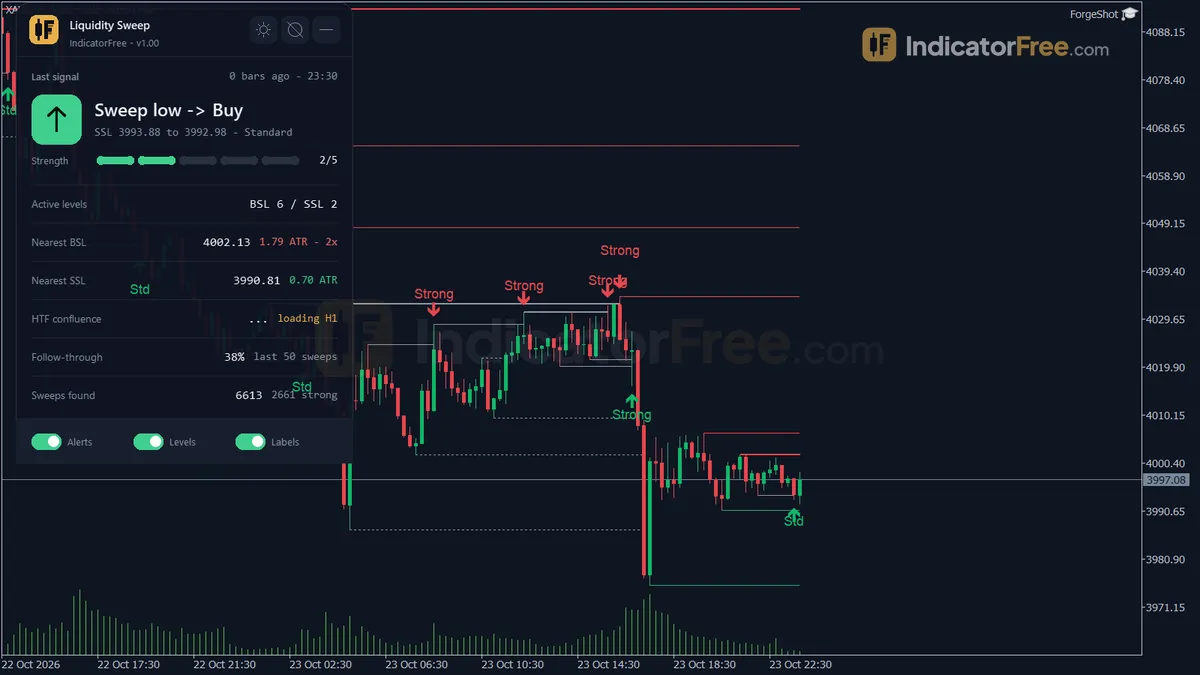
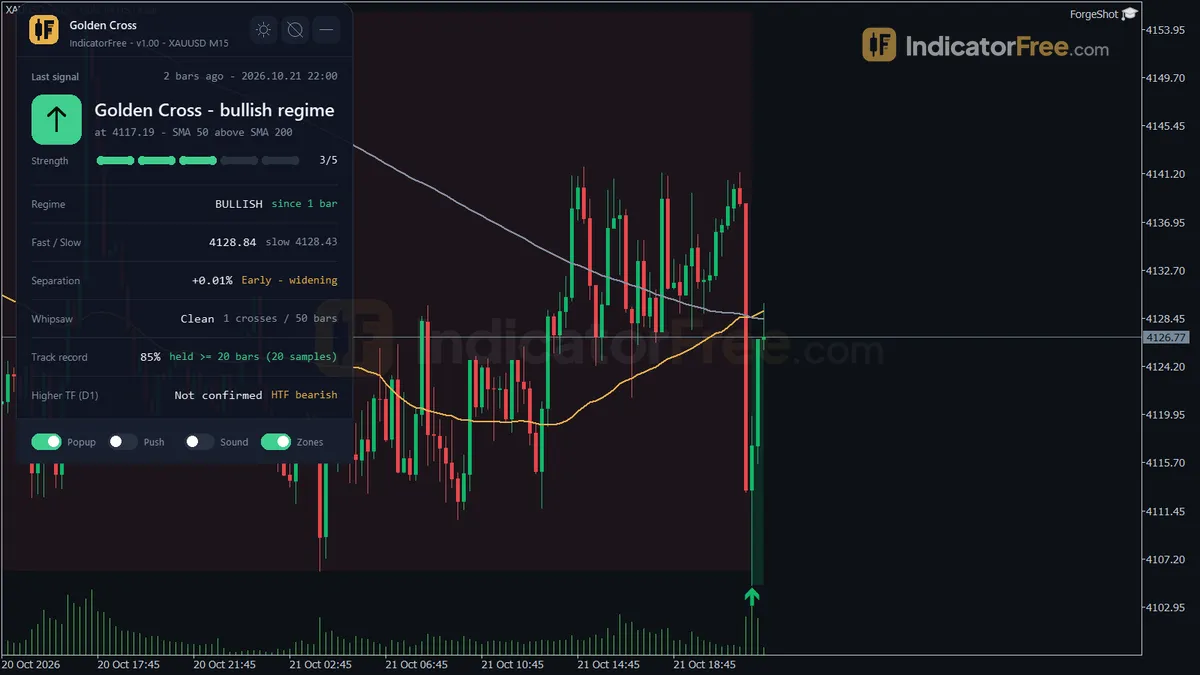
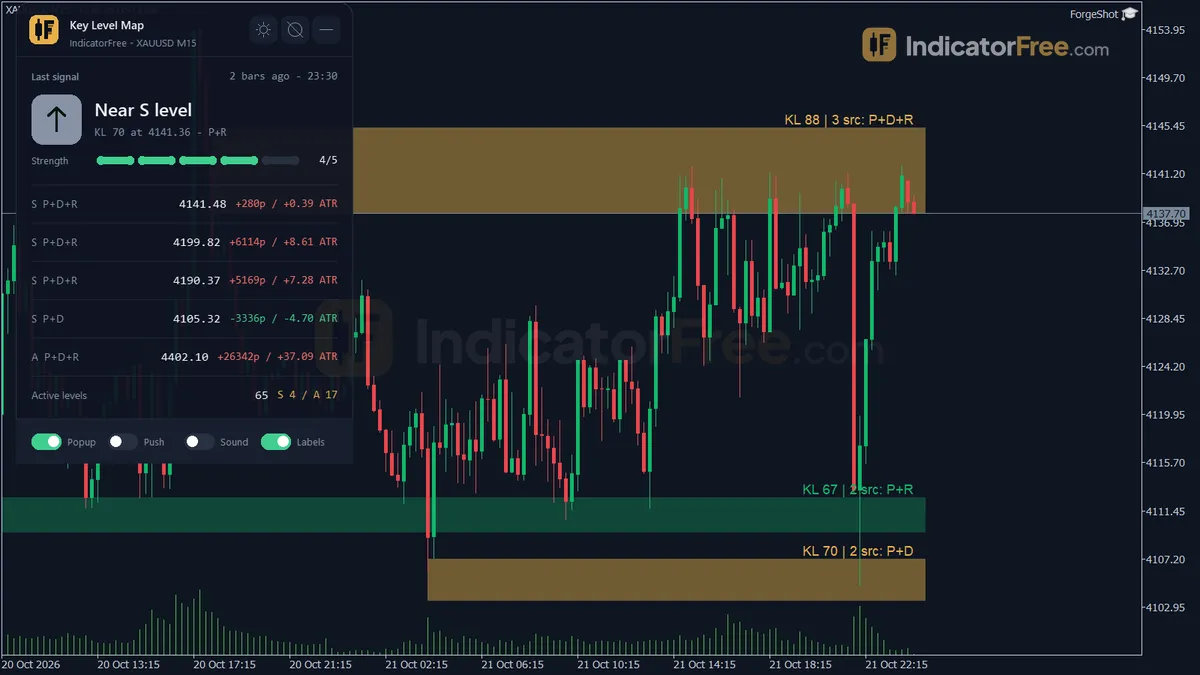
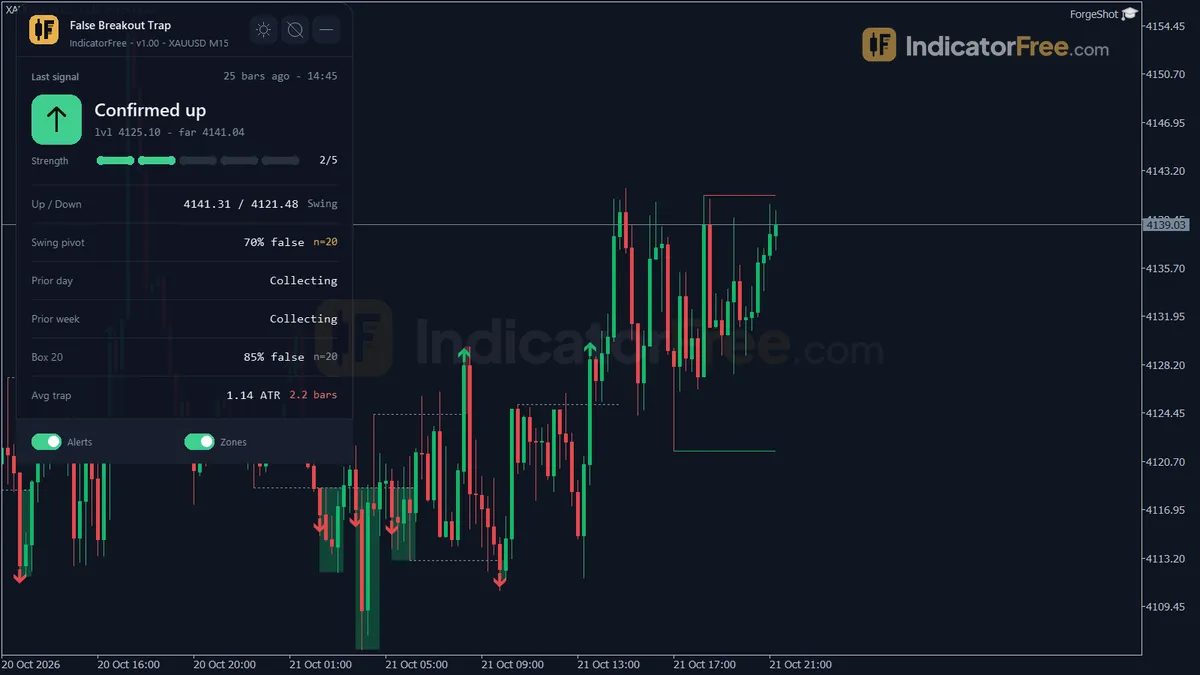
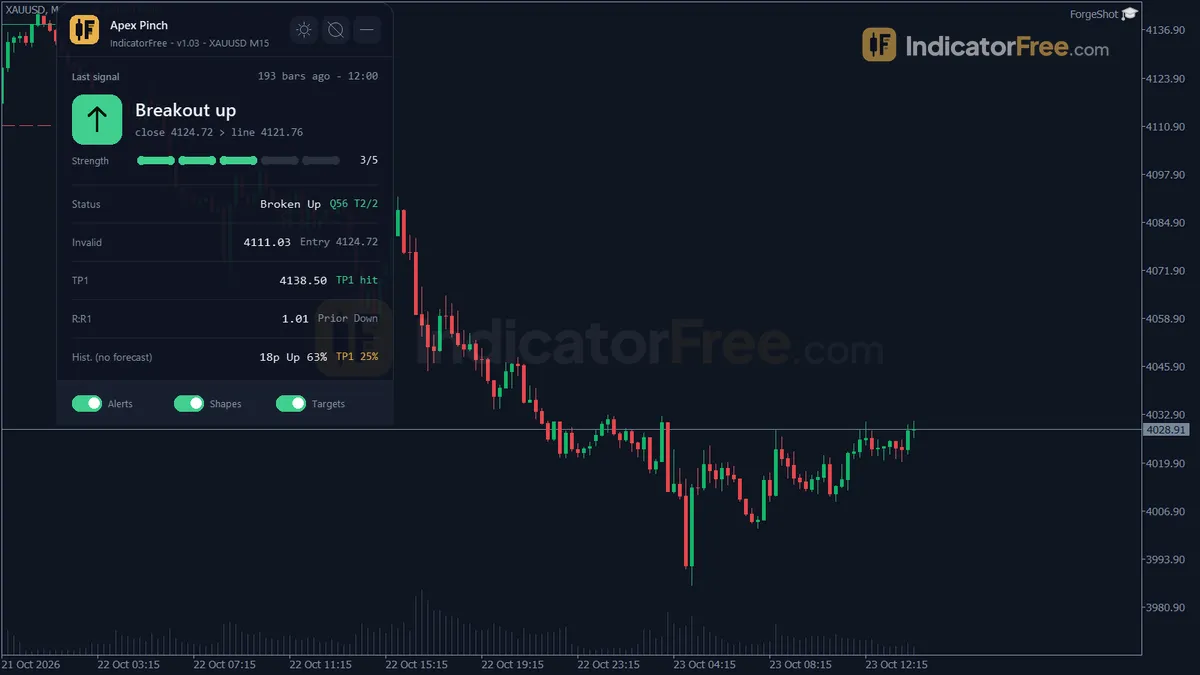
Those programs come in two main kinds. An indicator draws something on the chart. An Expert Advisor (EA) is a trading bot: it can open and close trades by itself under coded rules.
MT5 does not hold your money, set your spread or decide your leverage. Your broker does.
- –Shows live prices and charts
- –Sends your orders to the broker
- –Tracks open positions and balance
- –Runs MQL5 indicators and Expert Advisors
- –Holds your money
- –Sets your spread
- –Decides your leverage
- –Supplies prices, symbols and trading hours
How to get MetaTrader 5 and log in for the first time
- Pick a broker that offers MT5. Open a live account, or a demo account to practise with virtual money.
- Download MT5 from that broker. Install the desktop terminal, or the mobile app from your phone's app store.
- Log in with the details the broker sends you. You need the account number, the password and the server name. Choose that exact server, because each broker runs its own.
- Check what you can trade. Open the Market Watch window to see the symbols on your account, then drag one onto a chart.
The MetaTrader 5 main screen: Market Watch, Navigator, chart and Toolbox
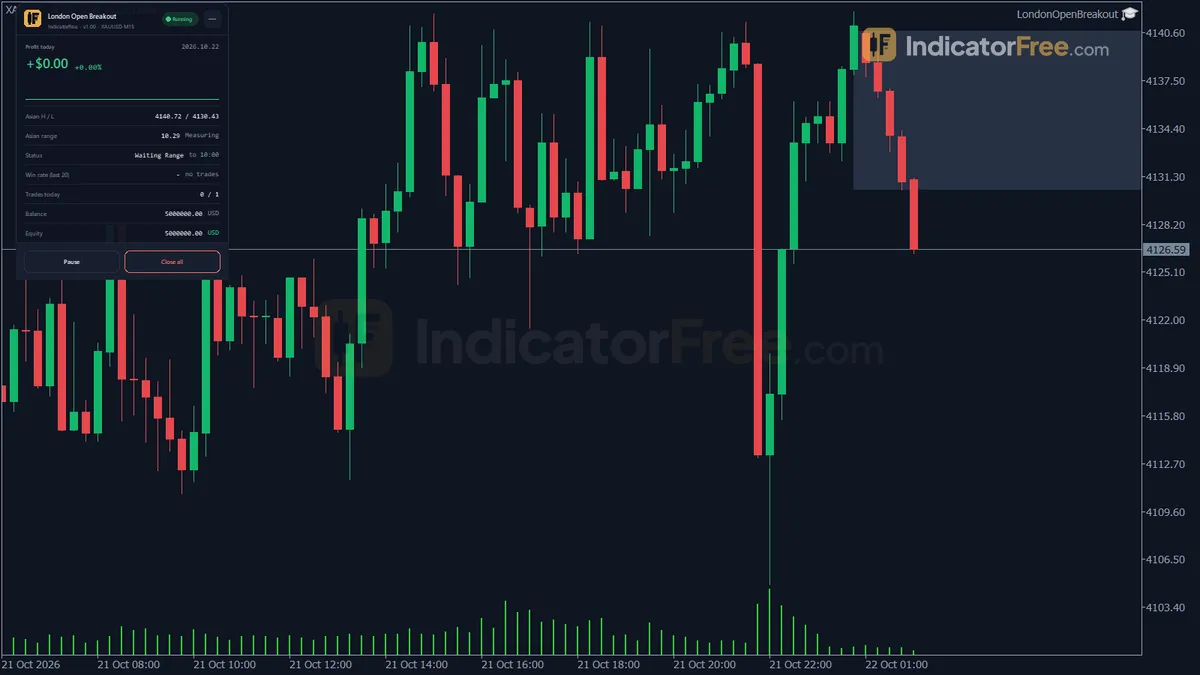
The default MT5 screen has four areas. Market Watch lists your symbols with live bid and ask prices. Navigator lists your accounts, indicators, Expert Advisors and scripts. The chart fills the middle. The Toolbox sits along the bottom: its Trade tab shows open positions and balance, History shows closed trades, and Journal shows platform messages. If one of these windows is missing, reopen it from the View menu.
How to add an indicator or Expert Advisor to MetaTrader 5
- Open the data folder. In MT5, click File > Open Data Folder. A folder window opens on your computer.
- Go to the right subfolder. Open MQL5 > Indicators for an indicator, or MQL5 > Experts for an EA.
- Copy the file in. Paste the .ex5 file (or its .mq5 source file) into that folder.
- Restart or refresh. Restart MT5, or right-click inside the Navigator and choose Refresh. The file now appears under Indicators or Expert Advisors.
- Drag it onto a chart. Drag it from the Navigator onto the chart you want, set its inputs and click OK.
- Allow Algo Trading for an EA. Tick Allow Algo Trading in the EA's settings and make sure the Algo Trading button on the toolbar is switched on.
A .mq4 file will not load: it is MQL4 code written for MetaTrader 4, and MT5 only reads MQL5 files (.mq5 or .ex5).
How the volume field decides your risk: a worked example
The figures here are an illustrative example. MT5 asks for trade size in lots, not in money. On a forex pair, one standard lot is 100,000 units of the first currency.
You have $2,000, you buy EURUSD at 1.1000, and your stop is 30 pips away at 1.0970. You type 0.10 in the volume field.
Now the common misread. Type 1.00 instead, thinking it means "one small trade". That is 100,000 units, each pip is worth $10, and the same stop loses 30 × $10 = $300, or 15% of the account.
To size a trade backwards, copy this: lots = money you accept losing ÷ (stop in pips × $10). The $10 per pip per lot applies to pairs quoted in USD, such as EURUSD, on a USD account. For other pairs the pip value differs, so check it in the symbol specification.
For $20 of risk and a 30-pip stop: 20 ÷ 300 = 0.067 lots. Round down to 0.06 lots ($18 risk) so you stay under your limit. The rule: always round lots down.
Where you set a trade in the MT5 order window
The order window has a few fields that matter, and each expects a specific kind of number. The drawing below shows the example trade filled in.
Two other places are worth knowing. The symbol's specification lists contract size, minimum volume and trading sessions. The Algo Trading button allows or blocks trading by every EA at once: the EAs stay attached to their charts but cannot send orders while it is off.
Netting or hedging: how an MT5 account counts positions
MT5 accounts also come in two modes, chosen when the account is opened. In netting mode, you hold one position per symbol, so a sell reduces or flips an existing buy. In hedging mode, each order is a separate position, so a buy and a sell can sit side by side.
MetaTrader 5 or MetaTrader 4: which one to use
MetaTrader 4 (MT4) is the older platform from the same maker. Both are still offered by brokers, but they are not interchangeable.
| Attribute | MetaTrader 4 | MetaTrader 5 |
|---|---|---|
| Account modes | Hedging only: each order is its own position | Netting or hedging, chosen when the account is opened |
| Programming language | MQL4 | MQL5 |
| Programs from the other platform | MT5 indicators and EAs do not run | MT4 indicators and EAs do not run unless rewritten in MQL5 |
| Markets | Built mainly for forex and contracts for difference | Built for several asset classes; your broker decides which it lists |
The decision rule: if the EA or indicator you want exists only for MT4, use MT4. Otherwise, choose MT5 as long as your broker offers it, because you get the newer language, the choice of netting or hedging, and room for more asset classes.
Checks before you place a live MT5 trade
- Server time. MT5 shows the broker's server time, not yours. Daily candles and session-based tools follow that clock, so compare it with your local time before trusting any "open" or "close".
- Account mode. If you are in netting mode, a second order on the same symbol changes your existing position instead of adding a new one.
- Contract size. Gold, indices and stocks do not use 100,000 units per lot. Read the specification before reusing a forex lot size.
- Demo first. Place the trade on a demo account and confirm the loss at the stop matches your calculation.
FAQ
Is MetaTrader 5 free to download and use?
Yes. The platform is free from the broker. The broker charges you through the spread, commission and swap on your trades.
Can I trade stocks on MetaTrader 5, or only forex?
The platform supports several asset classes, but you only get what your broker lists. Many brokers offer shares as contracts for difference, which means you trade the price without owning the share. Check the symbol list and each contract's specification.
Are free MetaTrader 5 trading bots safe to use?
A free EA is only code, and it will trade your money exactly as written. Run it in the built-in Strategy Tester and then on a demo account first. A backtest shows past data, not a forecast.
Can I run an Expert Advisor from the MetaTrader 5 phone app?
No. The mobile app handles charts, orders and position management, but EAs and custom indicators run only in the desktop terminal. To keep a bot working while you are away, the desktop terminal must stay on and connected. A virtual server (VPS) running the terminal does the same job.
Why does MetaTrader 5 refuse my order with "Trade disabled"?
The order was blocked before it reached the market, usually for one of three reasons. You logged in with the read-only investor password, the symbol's trading mode is set to disabled, or the broker has restricted your account. Log in with the main password, check the symbol's trade mode in its specification, or ask the broker. A close-only symbol gives a different message, "only position closing is allowed", which means you can close existing positions on it but not open new ones.