Key Level Map
Free MT5 indicator that merges swing pivots, prior day/week highs-lows and round numbers into ranked S/A/B key level zones. Lab-run on MT5 build 6230.
- Repainted
- Not tested
- Signals / week
- —
- Tested on
- —
- Tested
- 2026-10-05
Overview
Key Level Map is a free MT5 indicator that draws key support and resistance zones on your main chart. By default it shows up to 8 ranked zones, fires approach alerts only at Tier S and A levels, and judges a break on a close beyond 0.25 x ATR. Each zone gets an Importance score and a Tier: S, A or B. It merges four sources into one map: swing pivots, the previous day high/low, the previous week high/low and round numbers. The Lab ran version 1.00 on MT5 build 6230 on 2026-10-05.
It suits you if your chart is covered in hand-drawn lines and you only want the few levels where several reasons for price to react overlap.
To install, copy the .ex5 file to MQL5/Indicators, restart MT5 or refresh the Navigator, then drag it onto a main chart window (it draws on the price chart, not in a subwindow).
What it puts on your chart
Key Level Map draws three things, built where several sources overlap (confluence):
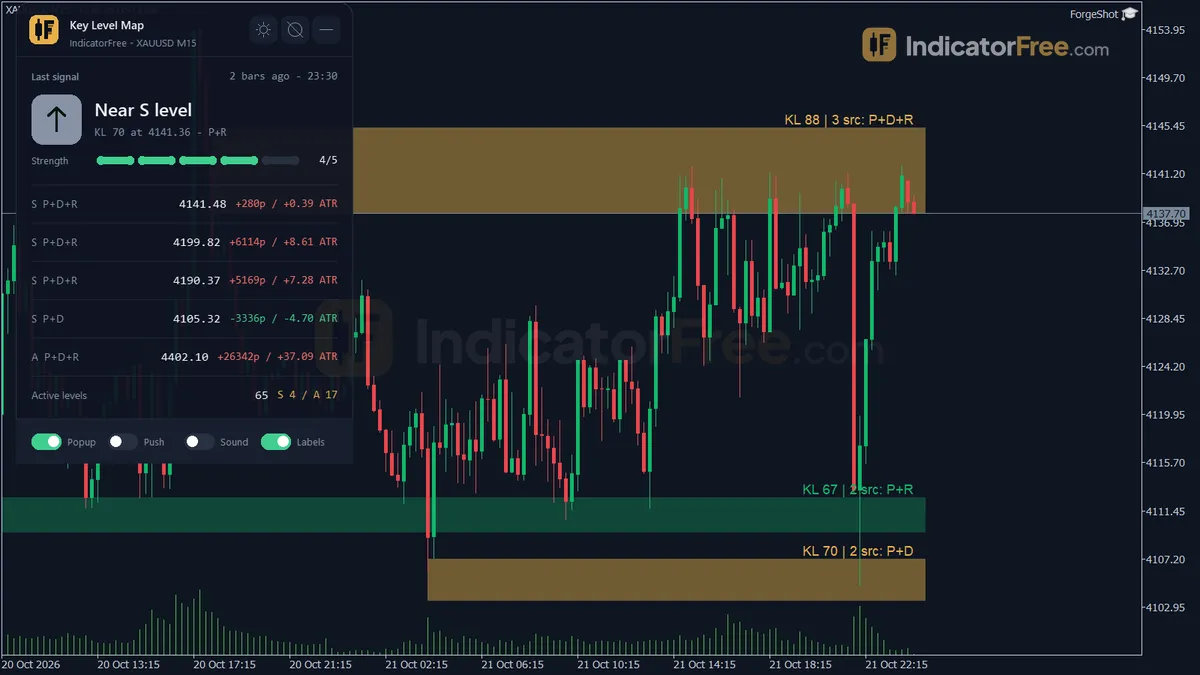
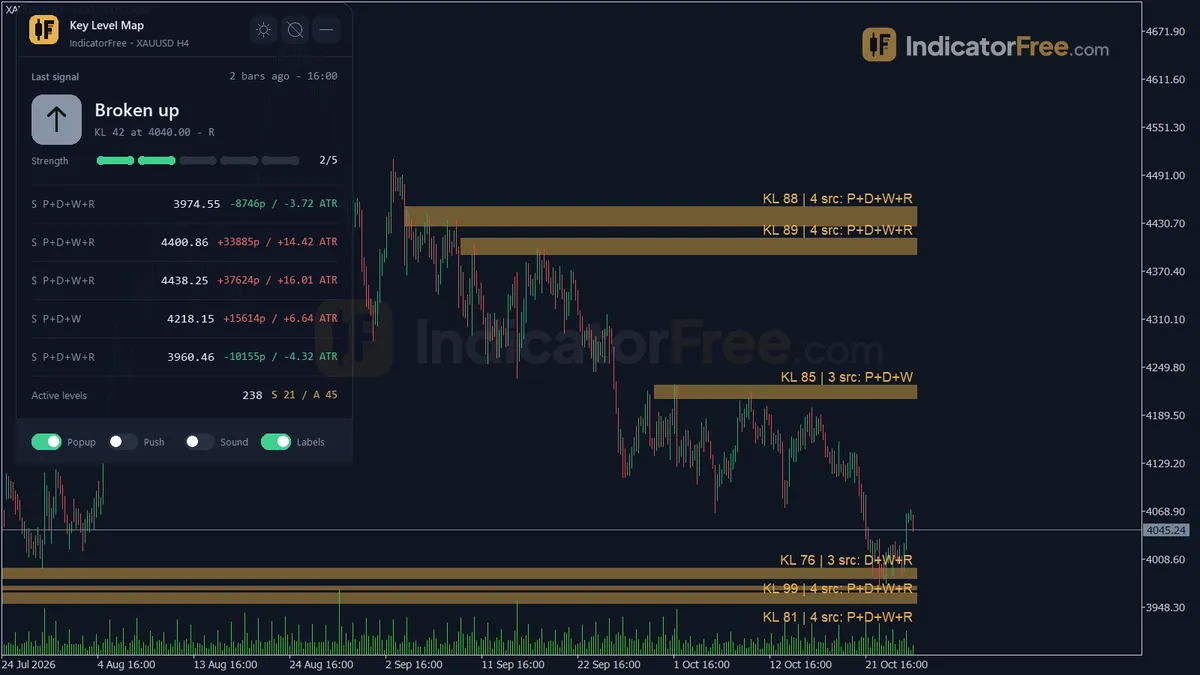
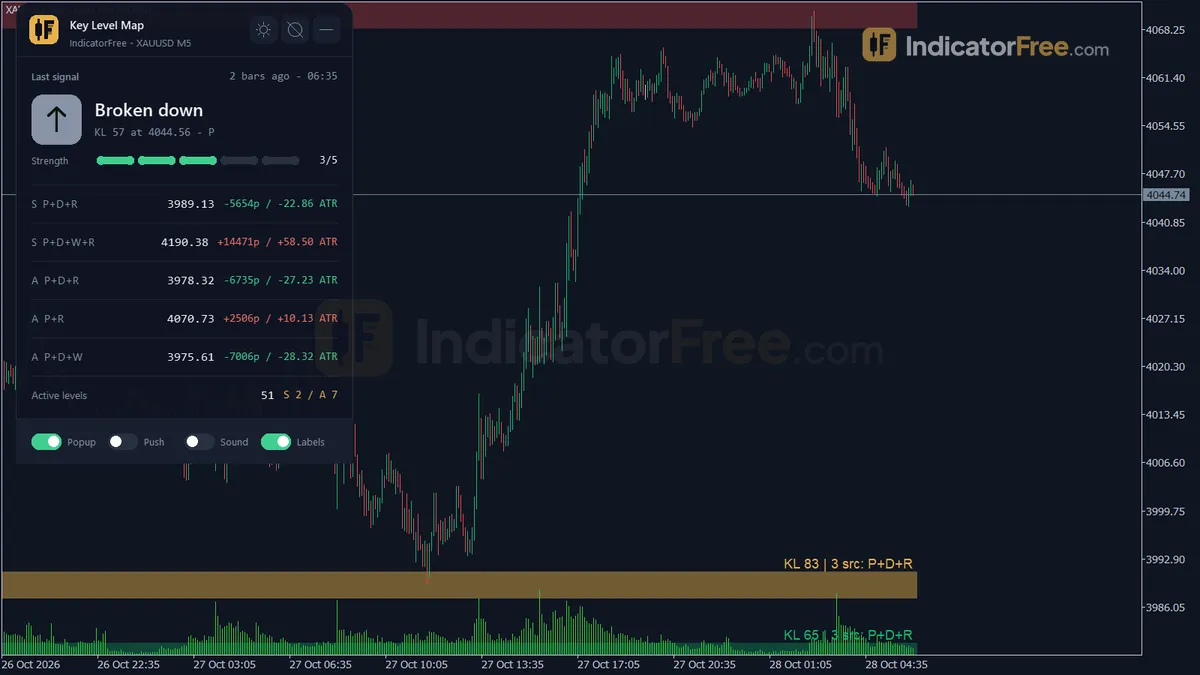
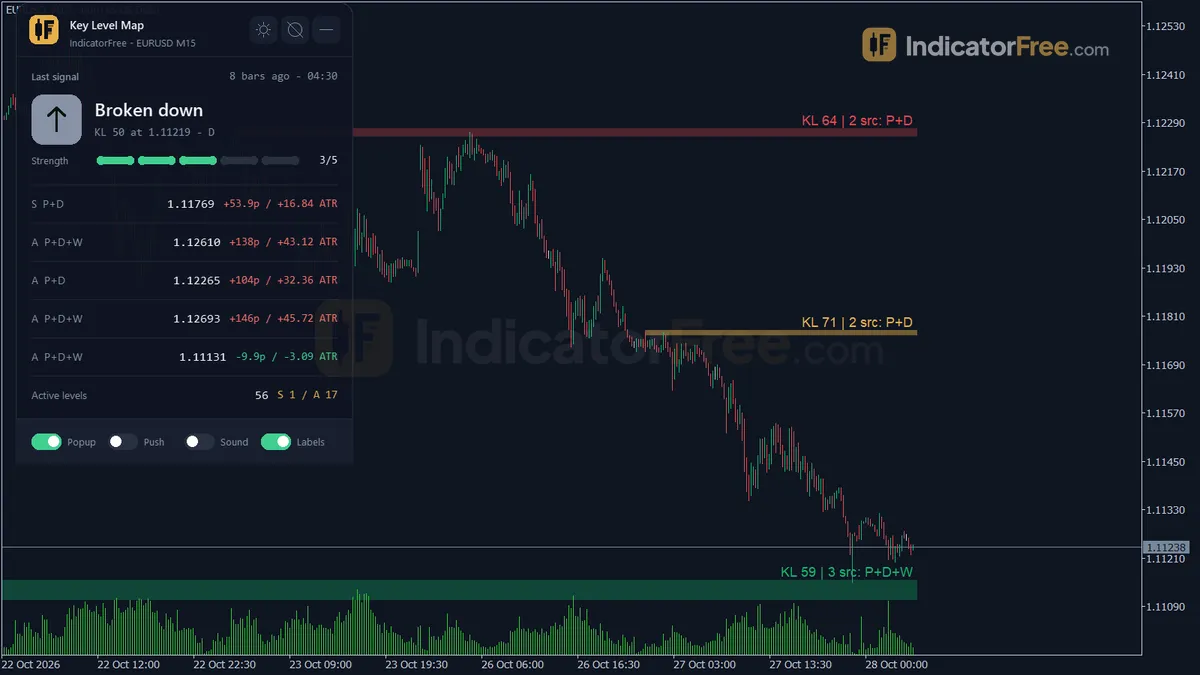
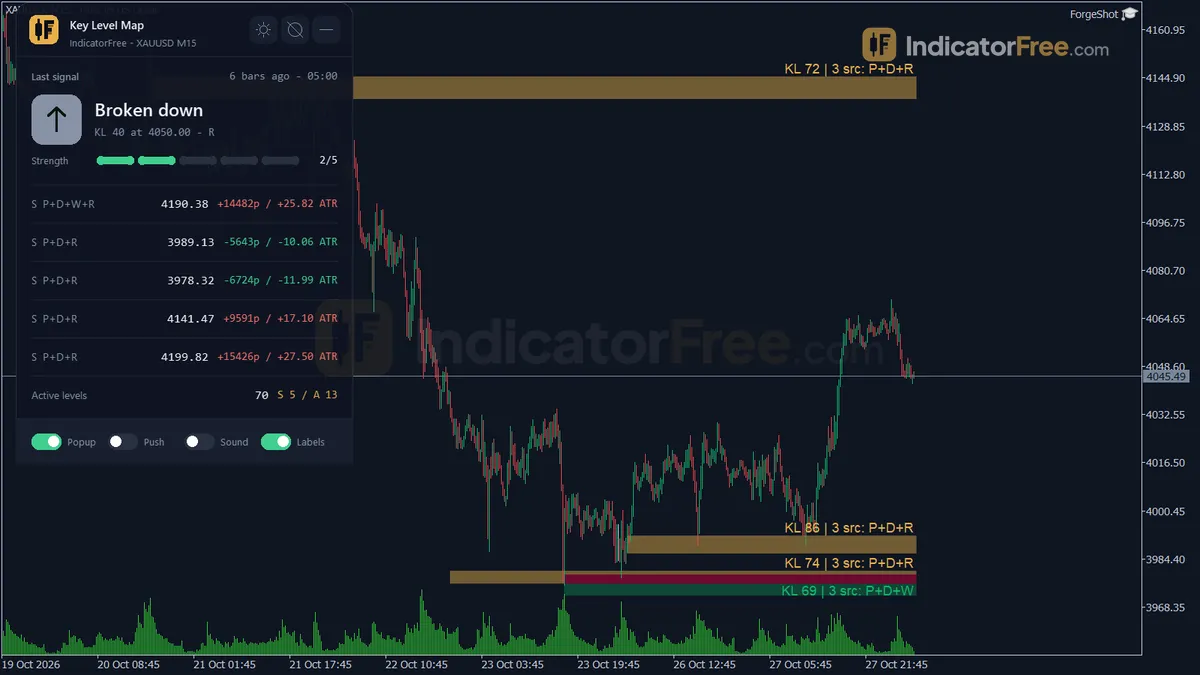
- Key Levels zones: one rectangle for each merged level. Only the highest-Importance active levels are drawn, so the map stays short.
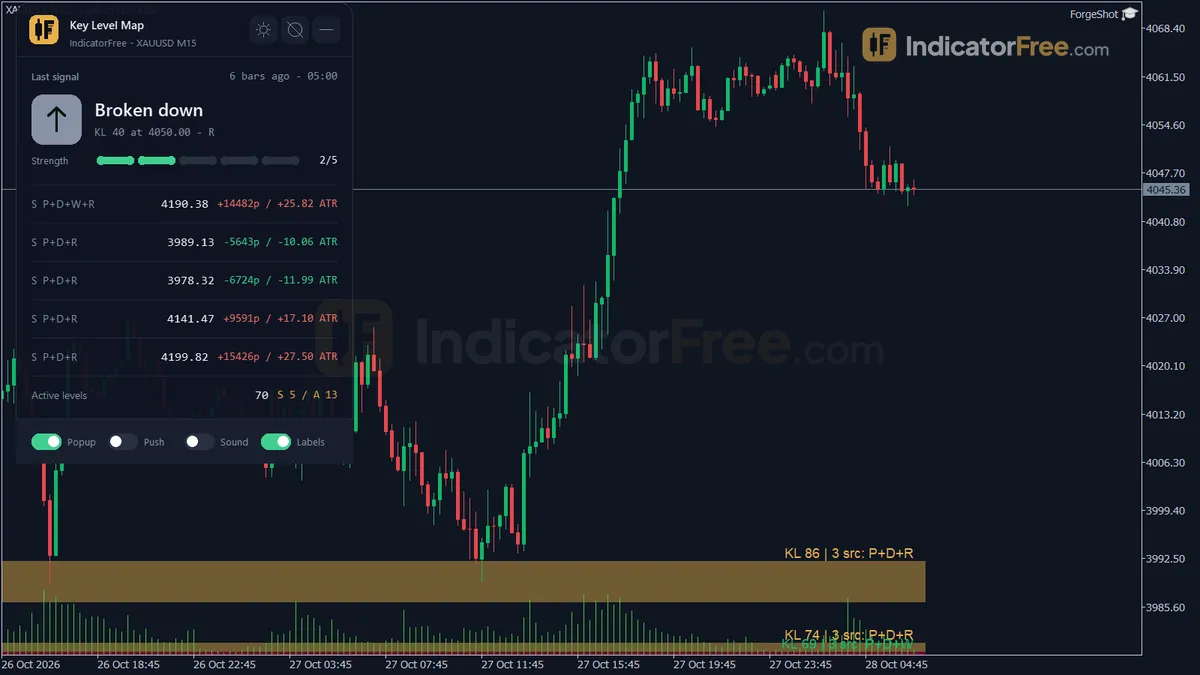
- KL Score Tag: a text tag on each zone that reads "KL score | sources". It shows the score and which sources built the level, for example a swing pivot plus the previous day high.
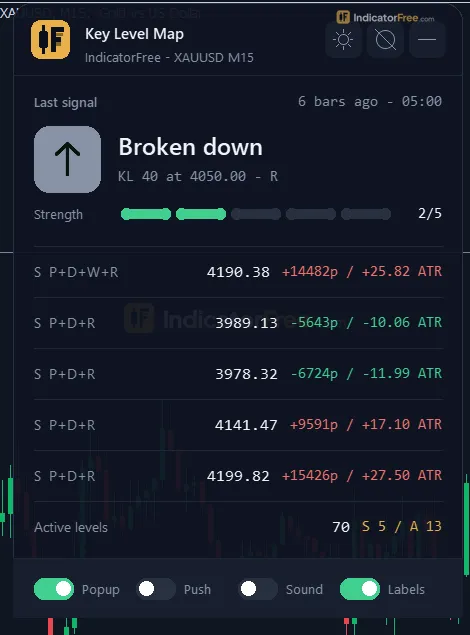
- Key Levels panel: the last approach or break alert, the top 5 key levels with their tier, sources, price and distance (in pips and in ATR), and the number of active S and A levels.
The picture below shows how a zone, an approach and a break look on a chart.
What the Lab checked, and what it did not
The Lab loaded and compiled version 1.00 (a 111.5 KB file) on MT5 build 6230 on 2026-10-05 and confirmed its 25 inputs and three alert types (popup, push, sound); no symbol-level hit-rate or repaint study was run. So the facts do not include a repaint count or a rate for how often price reacted at a level. No number tells you that a Tier S zone holds more often than a Tier B zone. Treat the tiers as a ranking of how much evidence sits behind each level, not as a probability.
Two built-in behaviours matter more for you than any score:
- A swing pivot level only appears once PivotBars bars have closed on each side of the swing. With the default of 7, a new swing high shows up 7 bars after it formed. This delay is by design, not a bug.
- A break is judged on a closed bar that closes beyond the level by a buffer, so a wick through a zone does not break it.
Who it is for
It suits discretionary traders who already trade reactions at levels and want those levels picked by fixed rules instead of by eye. It helps most when you start a session and want to know quickly where the nearest strong levels are and how far away they are in ATR.
How it works
- 1Collects candidate levels from swing pivots, previous day and week highs and lows, and round numbers near price.
Pivot = highest or lowest bar among PivotBars on each sideInputs: UsePivotSource, PivotBars, UsePrevDaySource, UsePrevWeekSource, UseRoundNumberSource, RoundNumberStep, RoundLevelsEachSide - 2Merges candidates that sit within an ATR-based tolerance, so a level can stack several sources.
Tolerance = ClusterATRMult x ATRInputs: ATRPeriod, ClusterATRMult, MaxDistanceATR - 3Scores each level 0 to 100 from source weights, recency and touches. Tier S needs 70, tier A needs 45.
Score = 0.6 x source score + 0.25 x recency + 0.15 x touches (max 5), recency halves every RecencyHalfLifeBarsInputs: RecencyHalfLifeBars - 4Source weights: pivot 40, previous day 30, previous week 20, round number 10 (18 if major), capped at 100.
- 5A close beyond a level plus buffer marks it broken. Price near a ranked level fires an approach event.
Broken if Close beyond level by BreakBufferATRMult x ATR. Near if distance <= ApproachATRMult x ATRInputs: BreakBufferATRMult, ApproachATRMult, ExpiryBars, MaxLevelsShown, ShowTierB
Specifications
- Platform
- MetaTrader 5
- Version
- 1.00
- Type
- Indicator
- Window
- Main chart
- Draws
- 2 zones, 1 panel
- Alerts
- popup, push, sound
- Repaints
- not tested
- Inputs
- 25
- Tested on
- MT5 build 6230 · 2026-10-05
Repaint test
Repaint: not tested. This indicator draws zone, panel, which the IndicatorFree harness cannot read through iCustom().
IndicatorFree — tested 2026-10-05 · MT5 build 6230. Results come from historical data, not live trading, and do not guarantee future results.
What it draws
- Rectangles (Key Levels) drawn as chart objects, not buffers — they are not readable by iCustom() in an EA.
- Rectangles (KL Score Tag) drawn as chart objects, not buffers — they are not readable by iCustom() in an EA.
- An on-chart panel (Key Levels); values shown in the panel are not exposed as buffers.
Inputs
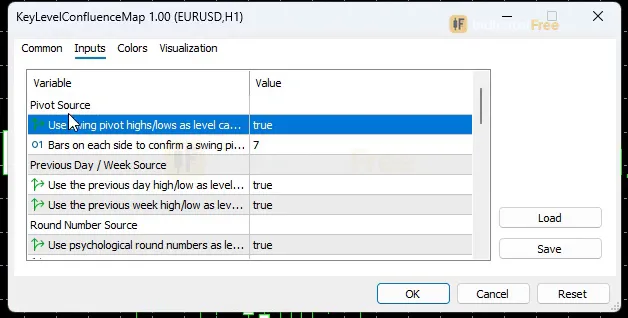
| Input | Default | What it does |
|---|---|---|
| UsePivotSource | true | Use swing pivot highs/lows as level candidates |
| PivotBars | 7 | Bars on each side to confirm a swing pivot (confirmation delay) |
| UsePrevDaySource | true | Use the previous day high/low as level candidates |
| UsePrevWeekSource | true | Use the previous week high/low as level candidates |
| UseRoundNumberSource | true | Use psychological round numbers as level candidates |
| RoundNumberStep | 0 | Round number step in price units (0 = auto from price magnitude) |
| RoundLevelsEachSide | 5 | Round numbers scanned on each side of price |
| MaxDistanceATR | 50 | Max distance from price (x ATR) for a round number candidate |
| ATRPeriod | 14 | ATR period used by every volatility threshold |
| ClusterATRMult | 0.3 | Candidates closer than this x ATR merge into one key level |
| RecencyHalfLifeBars | 200 | Bars for the recency score to fall by half |
| BreakBufferATRMult | 0.25 | A close beyond the level by this x ATR marks it broken |
| ExpiryBars | 100 | Bars a broken level stays on chart (dashed) before deletion |
| MaxLevelsShown | 8 | Max active key levels drawn (highest Importance first) |
| ShowTierB | false | Allow weak Tier B levels in the map (off: only when no S/A level exists) |
| ShowLabels | true | Show the "KL score | sources" tag on each drawn level |
| MaxHistoryBars | 3000 | Closed bars processed when the indicator loads |
| ApproachATRMult | 0.5 | Close within this x ATR of an S/A level fires an approach alert |
| AlertPopup | true | Popup alert in the terminal |
| AlertPush | false | Push notification to the MT5 mobile app |
| AlertSound | false | Play a sound on alert |
| AlertSoundFile | alert.wav | Sound file played when AlertSound is on |
| Theme | Dark | Chart color theme |
| RestoreTheme | true | Restore the original chart colors when the indicator is removed |
| PanelScale | 1 | Panel size multiplier (screen DPI is handled automatically) |
How to read it
How one key level is built
Every level goes through the same steps, from raw candidates to a zone that is drawn, alerted, and finally removed.
- 1Collect candidatesSwing pivots, previous day and week high/low, round numbers (each source has its own on/off toggle)
- 2Merge nearby candidatesCandidates closer than ClusterATRMult x ATR become one key level
- 3Score ImportanceConfluence + recency + touch count
- 4Assign a Tier and drawS, A or B; drawn highest Importance first (see the FAQ on hidden levels)
- 5Watch closesNear an S/A level = approach alert; beyond the break buffer = broken
- 6Retire the levelBroken levels turn dashed and are deleted after ExpiryBars
Reading the zones and the score tags
Start with the tier. S and A are the levels the tool trusts most, and they are the only ones that fire approach alerts. Tier B is weak. With ShowTierB off (the default), a B level only appears when the map has no S or A level at all. So if you see a B zone with that setting, it means "nothing stronger was found", not "trade this".
Then read the sources in the tag. A zone built from a swing pivot plus the previous week low plus a round number has more independent reasons behind it than a zone built from a single swing. Recency fades over time: with RecencyHalfLifeBars at 200, a level 200 bars old keeps half its recency score, and older levels keep less.
Reading the panel
The panel answers the question "how far is the next level?" without any measuring on your part. Each of the top 5 levels shows its distance in pips and in ATR. The ATR figure is the useful one, because it adjusts for how fast the market is moving right now. A close within 0.5 ATR of an S or A level (the default ApproachATRMult) fires an approach alert on any symbol, while the same distance in pips can be close on one symbol and far on another.
The count of active S and A levels tells you how strong the map is overall. If it reads zero, you are looking at a map of weak levels only.
When a level breaks: the common misread
A broken level does not vanish. It turns dashed and stays on the chart for ExpiryBars bars (100 by default), counted from the closed bar that broke it. Then it is deleted.
The usual mistake is to read a dashed zone as a still-active level and fade price there as if nothing happened. A dashed zone has already failed once. It is shown so you can watch for a retest from the other side: old resistance tested as support, or old support tested as resistance. Seeing a level "broken several times but still working" usually means wicks pierced it without a close beyond the buffer. The tool does not count those as breaks.
Alerts: what fires them and where they appear
- Approach alert: a close within ApproachATRMult x ATR of an S or A level.
- Break alert: a closed bar that closes beyond a level by BreakBufferATRMult x ATR.
The latest alert always shows at the top of the panel. AlertPopup (on by default) shows a popup in the terminal, AlertPush sends it to the MT5 mobile app, and AlertSound plays AlertSoundFile.
The inputs to change first
Worked example: if ATR(14) on your chart is 10 pips, candidates within 3 pips merge, an approach alert fires on a close within 5 pips of an S/A level, and a break needs a close more than 2.5 pips beyond the level.
| Input | Default | What changing it does |
|---|---|---|
| MaxLevelsShown | 8 | Lower it for a cleaner chart, raise it to see more of the ranking |
| PivotBars | 7 | Higher = fewer, bigger swings that appear later; lower = more swings that appear sooner |
| ClusterATRMult | 0.3 | Higher merges more candidates into wider zones |
| BreakBufferATRMult | 0.25 | Higher demands a stronger close before a level counts as broken |
| ApproachATRMult | 0.5 | Lower = fewer, later approach alerts |
| ExpiryBars | 100 | How long a broken level stays visible for retests |
| ATRPeriod | 14 | The ATR behind every distance threshold above |
| MaxHistoryBars | 3000 | Closed bars read at load; older swings are ignored |
A decision rule for each event
- Approach alert: do not enter on the alert itself. Check the panel. Act only if the level is S or A, its tag lists at least two sources, and the next level on the opposite side is more than about 1 ATR away (an untested rule of thumb, not a Lab result). Otherwise the trade has no room to run. Then wait for your own rejection candle to close.
- Break alert: do not chase the breaking bar. Mark the now-dashed zone and wait for a retest within the ExpiryBars window. Skip it if price runs straight into another S/A level.
- No S/A levels in the panel: stand aside or use a higher timeframe. A map made only of Tier B levels gives you nothing solid to lean on.
Installation
- 1Download KeyLevelConfluenceMap.ex5 from the button above (Google Drive).
- 2In MetaTrader 5: File → Open Data Folder → MQL5 → Indicators. Copy KeyLevelConfluenceMap.ex5 there.
- 3Restart MT5 or right-click Indicators in Navigator → Refresh.
- 4Drag Key Level Map onto a chart. For push alerts, enable "Allow push notifications" under Tools → Options → Notifications.
- Tested on MT5 build 6230.
Key terms and guides
- Wick
- A wick is the thin line above or below a candlestick's body. It marks the highest and lowest prices traded in that period that price could not hold until the candle closed.
- Swing high
- A swing high is a candle whose high is above the highs of the candles on both sides of it. It marks a peak where buyers stopped pushing and price turned lower, at least for a while.
- Indicator buffer
- An indicator buffer is the list of numbers an indicator stores, one value per candle, for each line, histogram or arrow it draws. Expert Advisors and alerts read these buffers to get the indicator's values.
- Round numbers
- Round numbers are prices that end in zeros, such as 1.1400 on EURUSD or 150.00 on a yen pair. Traders cluster stops, targets and pending orders around them, so price often stalls, reverses or speeds up there.
- Symbol
- A symbol is the short code a trading platform uses to name one tradable market, such as EURUSD for the euro against the US dollar or XAUUSD for gold. Every quote, chart and order is tied to exactly one symbol.
- Price Swing
- A price swing is one move in a single direction, from a turning low to a turning high or the reverse. You measure it in pips from one swing point to the next.
More on this subject: Supply, demand & key levels guide, terms and tools
User reviews
No reviews yet. Members who download the tool can review it here.
Sign in and download the tool to review it.
Build a checklist with it
Key Level Map does one job on the chart: zone / level. Put it on the same chart as the tools below and the IndicatorFree panels merge into one checklist card, ordered trend, zone, signal, risk.
- Trend / contextDMIAdds the trend side: which way the market leans before you act on Key Level Map.
- Entry signalCCIAdds the entry signal: the moment to act once Key Level Map has set the scene.
The Lab has not tested these combinations. Each tool is tested on its own; the card only lines up what each one says. Free members get 2 new tools a day. If one has to wait until tomorrow, install BlackBox to raise the limit to 5 a day (20 on a live account).
FAQ
Does Key Level Map repaint?
Repaint: not tested. This indicator draws zone, panel, which the IndicatorFree harness cannot read through iCustom().
Why can’t my EA read the zones?
Zones and the panel are chart objects, not indicator buffers, so iCustom() does not return them.
How do I get alerts on my phone?
Enter your MetaQuotes ID under Tools → Options → Notifications, tick "Enable push notifications", and keep the push alert input on.
What timeframe should I use Key Level Map on?
It works on whatever chart you attach it to. Swing pivots and ATR come from that chart, while the previous day and week levels stay the same on every timeframe. The Lab has not tested a best timeframe; H1-H4 for the map and a lower chart for entries is one untested starting point.
Why did a level disappear even though price never broke it?
Only the top MaxLevelsShown active levels by Importance are drawn. When a newer or stronger level pushes one out of that list, it is hidden, not broken. Raise MaxLevelsShown if you want to keep more levels visible.
How do I get the alerts on my phone?
Set AlertPush to true. You also need push notifications enabled in your MT5 terminal's settings, linked to the MT5 mobile app. Popup alerts are on by default, and sound alerts need AlertSound set to true.
Does it work on gold, indices or crypto?
Yes. All distances scale with ATR, so they adjust to each symbol. The only source to check is round numbers: with RoundNumberStep at 0 the step is chosen from the price's size, and if those levels look off you can enter a step in price units yourself (for gold, 10 is a starting point to compare against the auto setting; the Lab has not tested it).
Will it change my chart colours?
Yes. The Theme input (Dark by default) recolours the chart. With RestoreTheme left on, your original colours come back when you remove the indicator.
Changelog
- 1.00Initial release: merges swing pivots, previous day/week high-low, and psychological round numbers into one confluence-ranked key level map, with an Importance score (confluence + recency + touch count) mapped to a Tier. · 2026-10-05
Final verdict
Verdict: a disciplined level filter, not a signal system
Key Level Map does one job well: it cuts a cluttered chart down to a short, ranked list of zones, using rules you can read in the inputs. Merging candidates within an ATR fraction stops the "ten lines on one price" problem. Close-plus-buffer breaks stop wicks from killing good levels. The panel's ATR distances save you measuring by hand on every symbol.
Its value is in organising the chart, not in a measured edge. There is no Lab hit rate behind the tiers, so your own rejection or retest trigger still has to do the entry work.
Limits you should know
- Swing levels carry the PivotBars delay explained in the overview.
- Only the last 3000 closed bars are read at load, so very old multi-year levels can be missing on low timeframes.
- The auto round-number step is set from the price's size, not from your market. On symbols with unusual prices, check that the round levels look sensible.
- It finds levels and alerts you. It does not place trades, size positions or judge trend direction.
- –You trade reactions or retests at levels
- –Your chart is crowded and you want 5-8 ranked zones
- –You want alerts as price nears a strong level
- –You trade several symbols and need distances in ATR
- –You want buy/sell arrows to follow
- –You expect a tier to mean a measured win rate
- –You trade pure trend-following with no level logic
Settings to start with
Run the defaults for a week first, so you learn what the map normally looks like. Then try these as untested starting points, not Lab results. Compare each one with the default on your own charts:
- On M1-M5, if the map feels busy, try MaxLevelsShown 5 and PivotBars 10.
- On H4-D1, try UsePrevDaySource off if daily highs/lows clutter a chart where each candle is already a big part of a day.
- If you trade retests, try ExpiryBars 200 (double the default of 100) to keep broken levels visible longer.
An idea to pair it with
Key Level Map tells you where the levels are, but not whether price has built pressure to break one. Breakout Zone Finder boxes compression zones and marks confirmed breakouts, so a breakout arrow that clears a Tier S or A zone is one combination to watch. This is an idea to try. The Lab has not tested the pair.