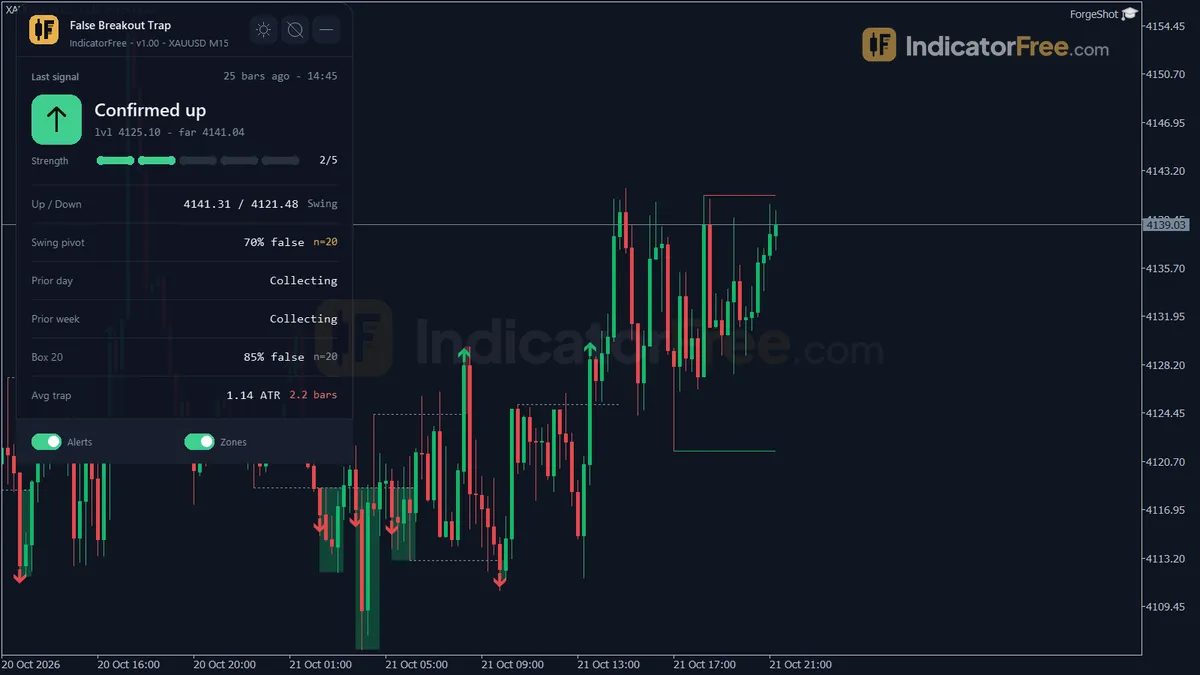
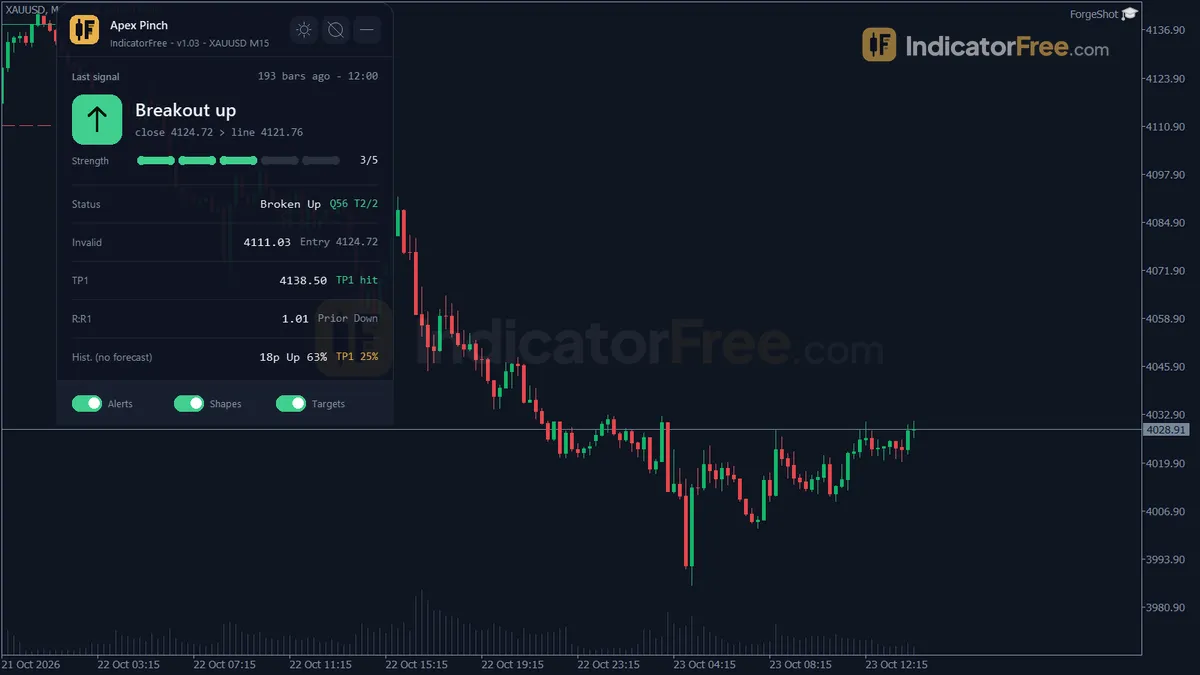
Inputs
Also called Input parameters, Parameters, Indicator settings, EA settings, Input settings
Inputs are the adjustable settings of an indicator or trading robot, such as a period, a stop multiplier or a lot size. You change them in a settings window without touching the code, and they decide what the tool calculates, draws or trades.
Two traders can load the same tool on the same chart and get different signals, because their inputs differ. Any result you see for an indicator or robot (a backtest on past prices, a screenshot, a review) belongs to the inputs that produced it, not to the tool in general.
What an input controls, and which ones touch your money
An input is one named value the tool reads when it starts. For an indicator, changing the value redraws the lines and arrows already on the chart across past candles, so old signals can move or vanish. For a robot, the new value changes the trades it takes from then on.
Inputs do not all carry the same risk. Sort them into four groups before you change anything.
| Input group | Typical example | Changes signals? | Changes money at risk? |
|---|---|---|---|
| Calculation | Period, price used, threshold | Yes | Indirectly |
| Filter | Trend filter on/off, minimum candle size | Yes, fewer or more signals | Indirectly |
| Trade and risk | Lot size, stop multiplier, risk percent | No, but stop and exit prices move | Yes, directly |
| Display and alerts | Colours, arrows, pop-up alerts | No | No |
"Indirectly" works like this: more signals, or signals at different prices, mean more trades and different stop distances, so the total risk changes even though the lot size input did not.
Decision rule: if the input sits in the first three rows, test the change on past data or a demo account before using it live. If it sits in the last row, change it freely. Defaults were set by the author for their own market. If the description does not say which symbol and timeframe they were built for, treat them as untested on yours.
How one changed input doubles the risk on a trade
The figures below are an illustrative example with round numbers.
You have a $10,000 account and risk 1% per trade. Your stop is set by an input called a stop multiplier, applied to the average true range (ATR, the average size of recent candles). The ATR reads 25 pips, and one standard lot on a USD-quoted pair moves $10 per pip.
You raise the multiplier from 1.0 to 2.0 to give the trade more room, so the stop widens from 25 pips to 50 pips. If you keep the original 0.40 lots, the loss at the stop is $200, which is 2% of the account. Dropping to 0.20 lots keeps the loss at $100. The calculation below carries the arithmetic so you can redo it with your own numbers.
The common mistake is treating a stop input as a chart setting. It is a risk setting, so every change to it needs a new lot size.
Decision rule: check which sizing input your tool has. If the robot sizes by a risk-percent input, it recalculates the lots itself when the stop widens. If it uses a fixed lot input, you must change the lot yourself.
Finding the inputs list and reading it on the chart
On most trading platforms you open a tool's settings from the chart, and the adjustable values sit in a section named Inputs or Parameters. Each row has a name and a value: a number, a true/false switch, or a pick-list.
Many platforms also print the main inputs in brackets after the tool's name on the chart. The drawing below shows how that label maps to the list.
Use that label as a quick check. If the numbers in brackets are not the ones you tested, the chart is not showing the setup you think it is.
Inputs belong to one copy of the tool on one chart. Changing them on the 1-hour chart does nothing to the copy on the daily chart.
Checks before you trade on changed inputs
- Change one input at a time. If you change three and the signals improve, you cannot tell which one did it.
- Write down the full set. Save it as a preset or take a screenshot, so you can restore it after an update or a reinstall. A preset is a saved file of all input values that you can load back in one click.
- Check time inputs against your broker's clock. Session-hour inputs usually follow the platform's server time, not your local time, so an hour that is right for one broker can be wrong for another.
- Match inputs to the timeframe. A period counts candles, so the same number covers far less time on a 1-minute chart than on a daily chart.
- Ask for the exact input set. Before you trust a published result, ask the seller or reviewer for the preset file that produced it.
FAQ
Why did my indicator inputs go back to default?
Removing the tool and adding it again, or installing a new version, usually loads the default values. Template or profile changes can do the same. Load your saved preset, then confirm the values in the chart label.
What happens to an open trade if I change a robot's inputs?
On most platforms the robot restarts with the new values. A stop or target already placed with the broker normally stays where it is, but the robot's later decisions (trailing, closing, adding) follow the new inputs. Test this on a demo account first, because robots differ in how they pick up trades they opened earlier.
What does optimizing inputs mean?
It means testing many combinations of values on past data to find the ones that scored best. The risk is that the winning set fits that stretch of history only. Check it on a period it was not tuned on, and prefer values whose neighbours also perform reasonably. As an illustrative example, if a period of 14 scores well but 13 and 15 score badly, the result is probably luck on that stretch of history.