Demand Zone Finder
Free MT5 indicator that boxes demand zones after a 1.5 ATR rally, grades them Weak/Medium/Strong and tracks touches. Lab-run on MT5 build 6230.
- Repainted
- Not tested
- Signals / week
- —
- Tested on
- —
- Tested
- 2026-10-05
Overview
Demand Zone Finder is a free MT5 indicator for traders who trade long pullbacks. It draws demand zones as rectangles on your main chart. A zone marks the small base of candles just before a rally of at least 1.5 ATR. Each zone is graded Weak, Medium or Strong by the size of that rally. The Lab ran version 1.00 on MT5 build 6230. It works best when you want every base-and-rally area marked the same way, with an alert when price comes back to it.
A demand zone is a price area where buying was strong enough to push price up quickly. This tool marks that area for you. It does not teach the method; the glossary covers the concept.
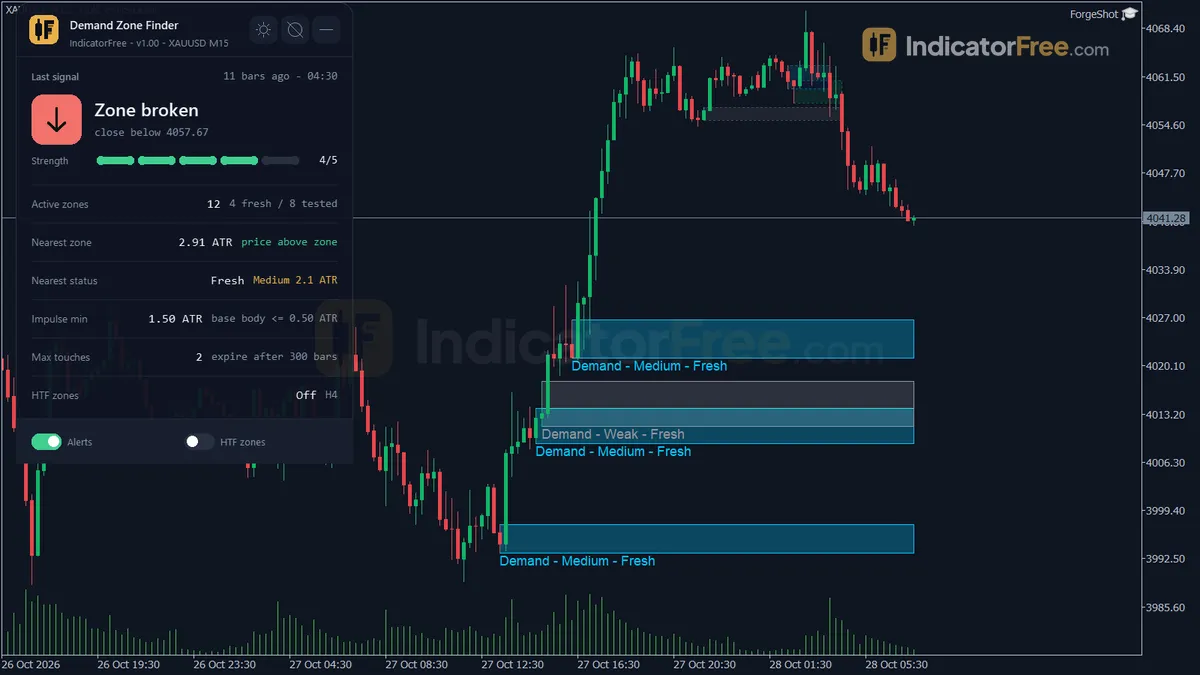
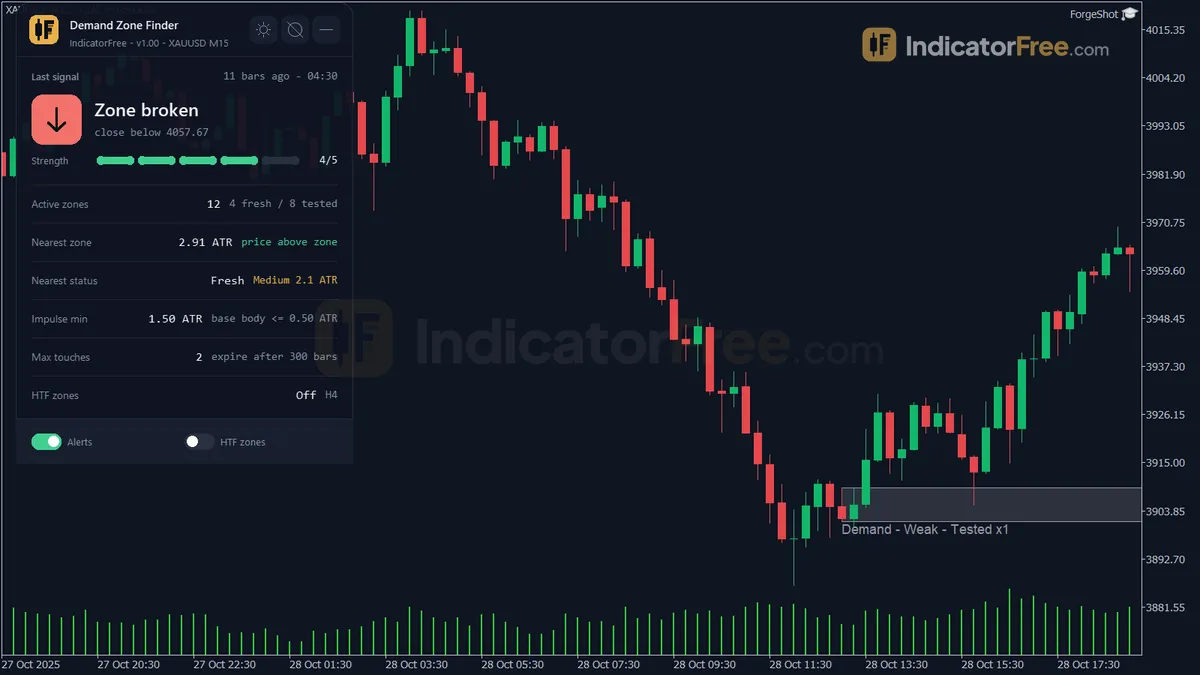
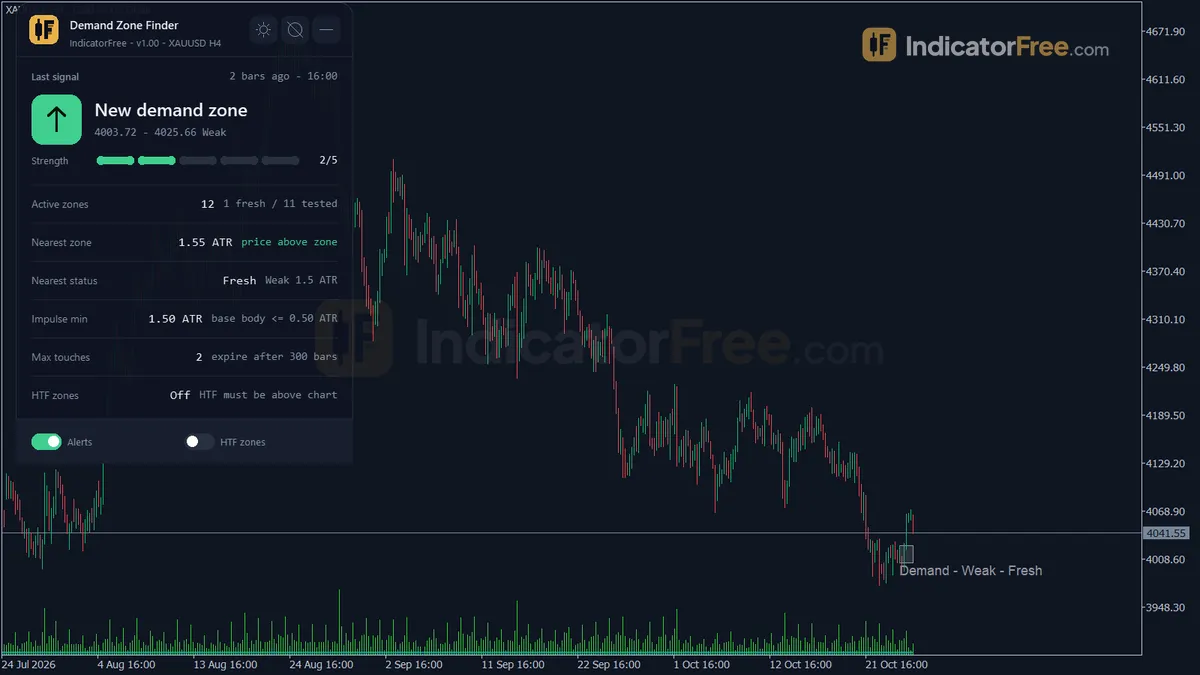
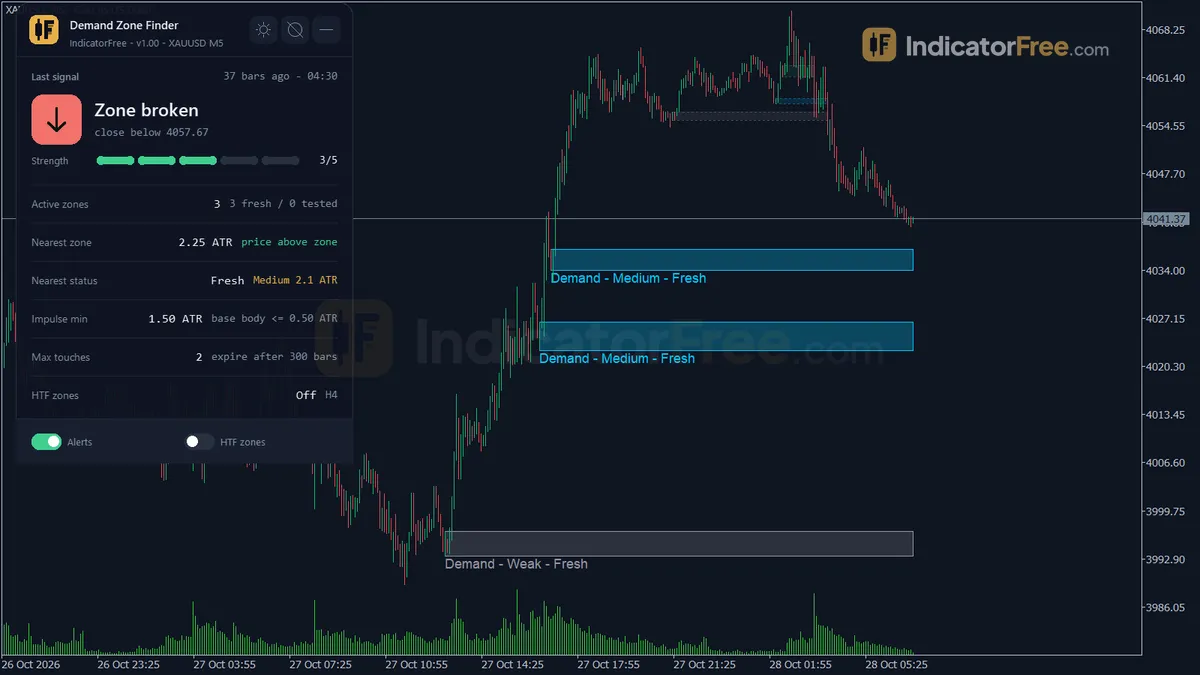
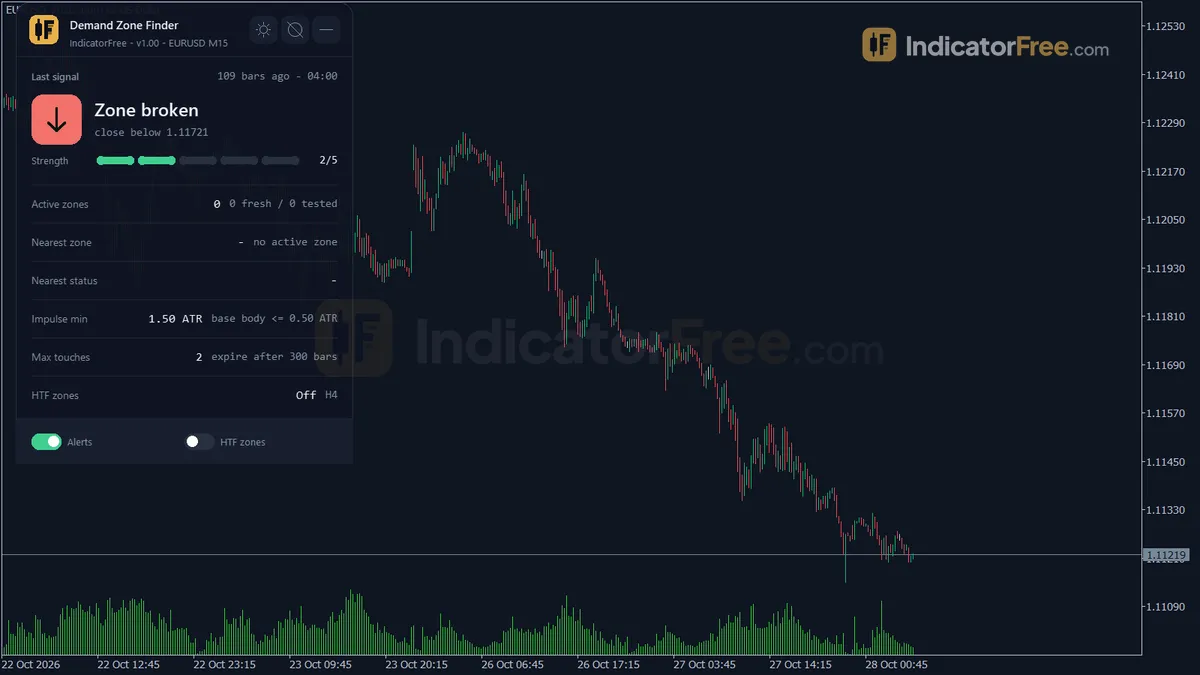
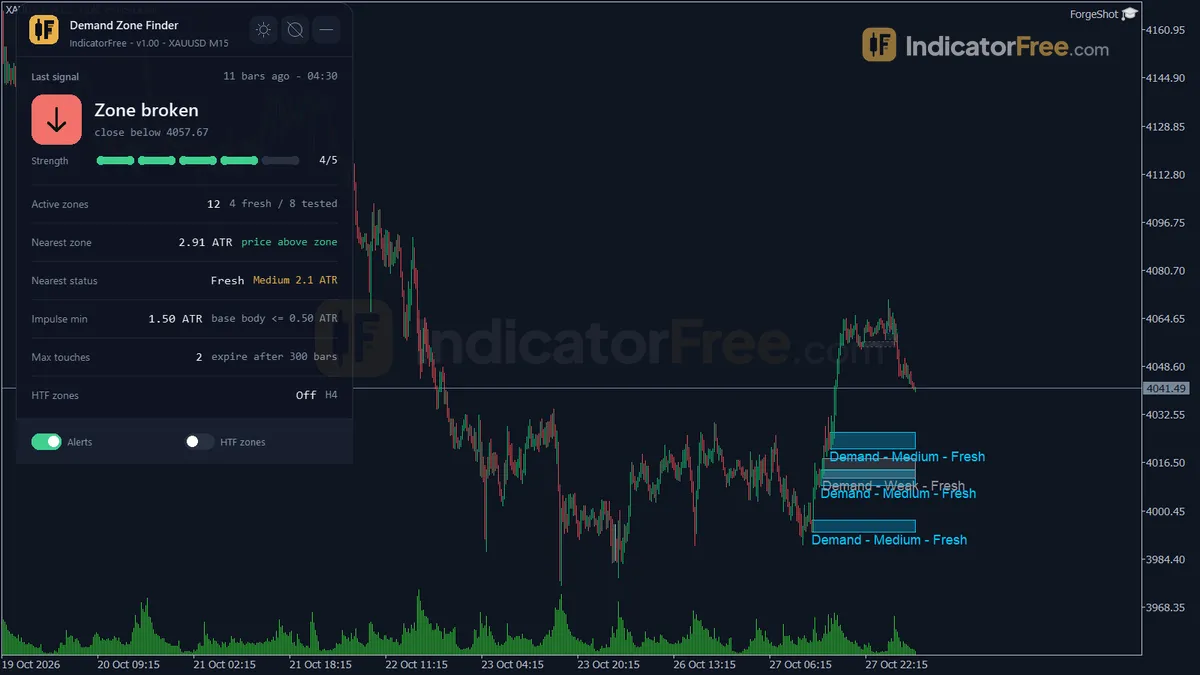
What the boxes, colors and panel show
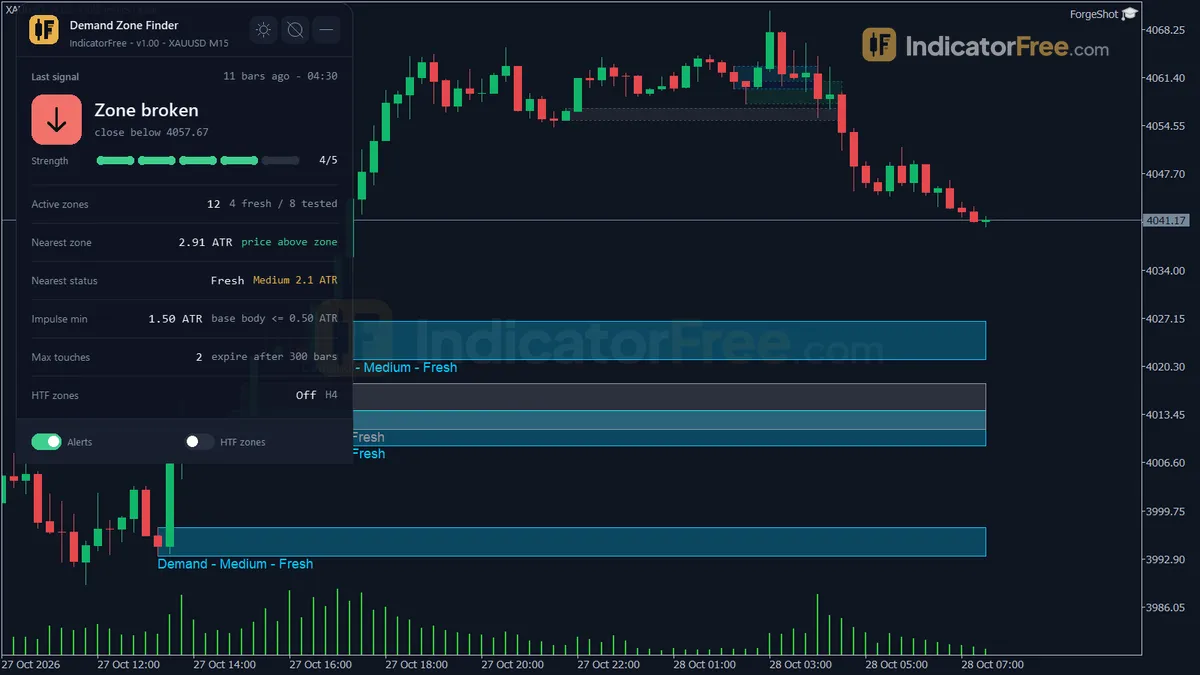
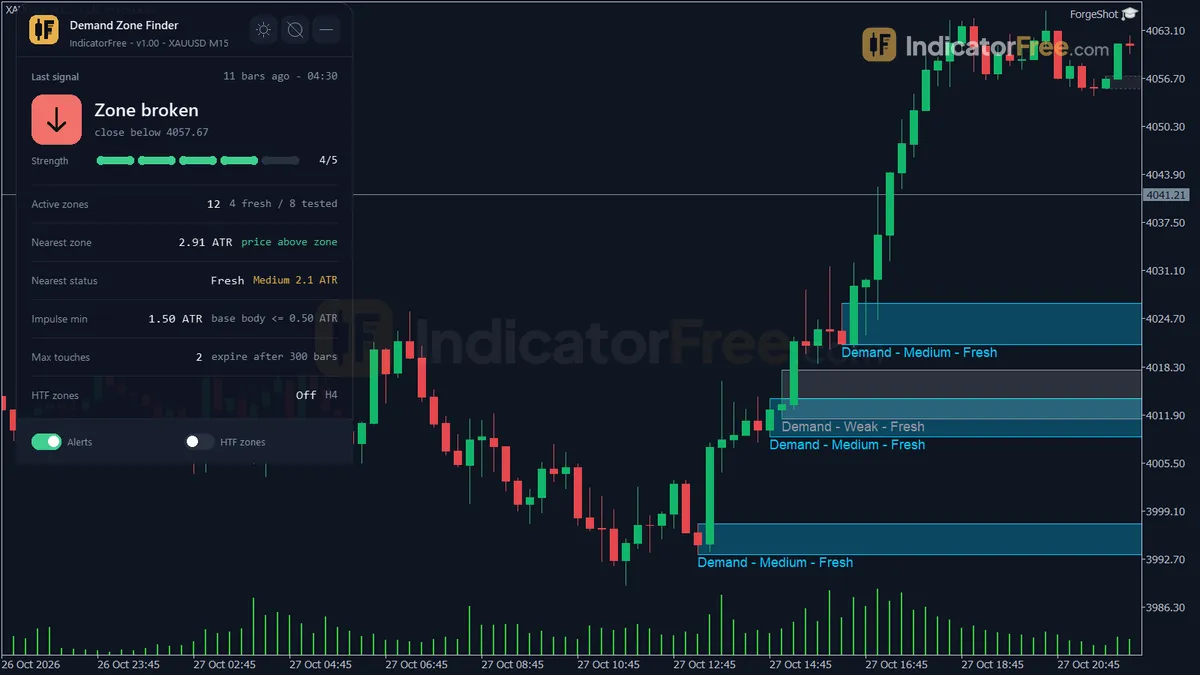
Each zone is a rectangle drawn from the base candle(s) and extended to the right. The color shows how hard price rallied away from the base, measured in ATR (average true range, the indicator's volatility unit):
- Strong (green): rally above 3.5 ATR
- Medium (cyan): rally from 2.0 to 3.5 ATR
- Weak (grey): rally below 2.0 ATR
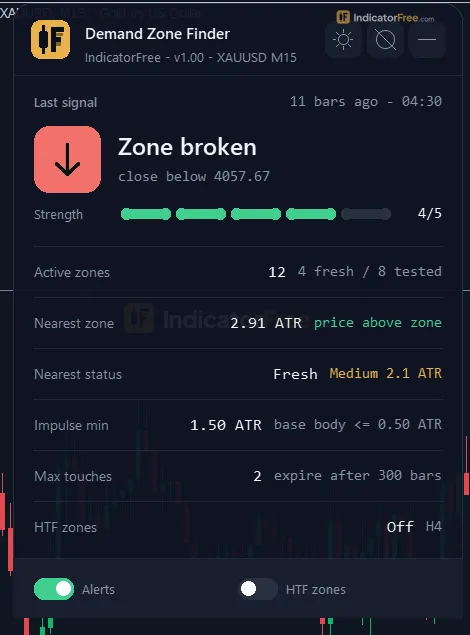
If you turn on ShowHTFZone, a second set of boxes, HTF Demand Zones, shows the demand zones of a higher timeframe on the same chart. A Zones panel in the corner lists:
- the last zone event
- the number of active zones
- the distance in ATR and the status of the nearest active zone
- your impulse and touch settings
- the HTF zone count
The chart below shows the shape to look for. The prices are illustrative, not a Lab recording. Price drops into a single quiet base bar with a 3-pip body. Then a three-bar rally lifts the high 32 pips above the base top by bar 8. With ATR at about 13 pips, that 32-pip rally is about 2.5 ATR, so the zone is graded Medium. Five bars later, price pulls back to a low of 1.0835, against a box top of 1.0836. That is the first touch.
What the Lab recorded and what it did not
The Lab facts record one run: version 1.00 on MT5 build 6230, on 2026-10-05. They do not list the symbol or the timeframe used. Build 6230 is a current MT5 terminal build, so it is a recent version of the platform you are likely running. The Lab facts for this tool include no hit-rate or bounce statistics. Nothing here tells you how often price bounced from these zones, so treat a zone as an area to watch, not as a measured edge.
Touches, breaks and invalidation are all judged on closed bars. A wick that pokes into a zone during a bar does not count until the bar closes. A zone only appears after the rally bars (ImpulseBars, default 3) have closed. That delay is by design, not a fault.
Who it helps
It helps you if you trade long setups from pullbacks and want the same rules applied to every chart. It is also useful if you want a higher-timeframe zone visible while you work on a lower timeframe.
How it works
- 1Calculates ATR on the chart timeframe and uses it to measure each closed bar.Inputs: AtrPeriod
- 2A zone book scans closed bars for a base candle then an ATR-sized impulse, storing demand zones.Inputs: BaseBars, BaseBodyRatio, ImpulseBars, ImpulseATRMultiple, UseWickBoundary, MaxZonesStored
- 3Zones move from fresh to tested, exhausted, broken or expired by touches, an ATR break buffer and age.Inputs: MaxTouches, InvalidationBufferATR, MaxAgeBars
- 4Zones are graded Strong above 3.5, Medium from 2.0, else Weak. Alerts fire on new zone, touch or break.
Grade: Strong if score > 3.5, Medium if score >= 2.0, else WeakInputs: AlertOnNewZone, AlertOnFirstTouch, AlertOnBreak - 5Optionally repeats the scan on up to 500 bars of a higher timeframe and draws those zones too.Inputs: ShowHTFZone, HTFTimeframe
Specifications
- Platform
- MetaTrader 5
- Version
- 1.00
- Type
- Indicator
- Window
- Main chart
- Draws
- 2 zones, 1 panel
- Alerts
- popup, push, sound
- Repaints
- not tested
- Inputs
- 26
- Tested on
- MT5 build 6230 · 2026-10-05
Repaint test
Repaint: not tested. This indicator draws zone, panel, which the IndicatorFree harness cannot read through iCustom().
IndicatorFree — tested 2026-10-05 · MT5 build 6230. Results come from historical data, not live trading, and do not guarantee future results.
What it draws
- Rectangles (Demand Zones) drawn as chart objects, not buffers — they are not readable by iCustom() in an EA.
- Rectangles (HTF Demand Zones) drawn as chart objects, not buffers — they are not readable by iCustom() in an EA.
- An on-chart panel (Zones); values shown in the panel are not exposed as buffers.
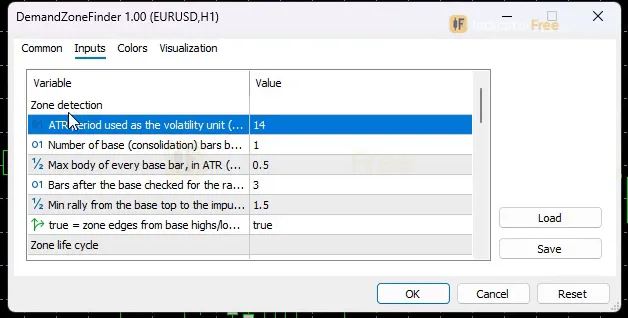
Inputs
| Input | Default | What it does |
|---|---|---|
| AtrPeriod | 14 | ATR period used as the volatility unit (5-50) |
| BaseBars | 1 | Number of base (consolidation) bars before the rally (1-3) |
| BaseBodyRatio | 0.5 | Max body of every base bar, in ATR (0.1-1.0) |
| ImpulseBars | 3 | Bars after the base checked for the rally, also the confirmation lag (1-6) |
| ImpulseATRMultiple | 1.5 | Min rally from the base top to the impulse high, in ATR (0.8-4.0) |
| UseWickBoundary | true | true = zone edges from base highs/lows; false = from base bodies (open/close) |
| MaxTouches | 2 | Separate touches after which a zone is Invalid (exhausted) (1-5) |
| InvalidationBufferATR | 0.1 | A close below the zone bottom minus this many ATR invalidates it (0.0-1.0) |
| MaxAgeBars | 300 | Bars an untouched zone stays Fresh before it is Expired (50-2000) |
| ExpiredFadeBars | 50 | Bars an Invalid / Expired zone stays faded on the chart before deletion (0-500) |
| MaxZonesStored | 30 | Max zones kept; the oldest is deleted above this (5-100) |
| ShowHTFZone | false | Also draw demand zones of a higher timeframe |
| HTFTimeframe | H4 | Higher timeframe for the extra zones (must be above the chart timeframe) |
| AlertOnNewZone | true | Alert when a new demand zone is confirmed |
| AlertOnFirstTouch | true | Alert when a closed bar touches a zone for the first time |
| AlertOnBreak | false | Alert when a closed bar closes below a zone (zone broken) |
| AlertPopup | true | Use popup alerts |
| AlertPush | false | Use push notifications |
| AlertSound | true | Play a sound |
| ColorStrong | C'18,183,106' | Zone color for Strong zones (rally > 3.5 ATR) |
| ColorMedium | C'0,200,255' | Zone color for Medium zones (rally 2.0-3.5 ATR) |
| ColorWeak | C'150,150,160' | Zone color for Weak zones (rally < 2.0 ATR) |
| ShowPanel | true | Show the zone panel |
| PanelScale | 1 | Panel size multiplier (DPI is applied automatically) |
| Theme | Dark | Chart color theme |
| RestoreTheme | true | Restore the original chart colors when the indicator is removed |
How to read it
Install: copy the 109.1 KB indicator file into your MQL5/Indicators folder, refresh the Navigator and drag the indicator onto a chart. It draws on the price chart, not in a subwindow.
How one zone forms, lives and disappears
Every zone goes through the same five steps.
- 1BaseBaseBars (1) quiet bar(s), each body no larger than BaseBodyRatio (0.5) x ATR(14)
- 2Rally checkWithin ImpulseBars (3) bars, the high climbs at least ImpulseATRMultiple (1.5) ATR above the base top
- 3Confirmed and gradedBox drawn from the base wicks; Weak under 2.0 ATR, Medium 2.0-3.5, Strong over 3.5
- 4Fresh, then touchedInvalid after a close below bottom minus 0.1 ATR or after MaxTouches (2) touches; Expired after 300 untouched bars
- 5Fade and deleteInvalid or Expired boxes stay faded for ExpiredFadeBars (50) bars, then are removed
It catches both Rally-Base-Rally and Drop-Base-Rally structures. What happens before the base does not matter. Only the base and the rally after it count. The indicator keeps no more than MaxZonesStored (30) zones. Above that, it deletes the oldest zone.
Reading a zone's state
- Fresh: no closed bar has touched the zone since the rally.
- After a touch (counted toward
MaxTouches): a closed bar has reached the zone, and the indicator adds one to its touch count. The panel shows the status of the nearest active zone. - Invalid: a closed bar closed below the zone bottom minus
InvalidationBufferATRx ATR, or the zone has used upMaxTouches. - Expired: the zone stayed untouched for more than
MaxAgeBarsbars. - Faded: an Invalid or Expired box. It is history kept on screen briefly, not a level to trade.
HTF zones follow the same touch, break, expiry and fade rules, counted in HTF bars. They are all deleted when you switch ShowHTFZone off. HTFTimeframe must be higher than your chart timeframe.
When you attach the indicator, it applies its Theme (Dark by default) to the chart colors. With RestoreTheme on, your original colors come back when you remove it.
The inputs that change what you see
| Input | Default | What changing it does |
|---|---|---|
ImpulseATRMultiple | 1.5 | The minimum rally size. Raising it removes smaller zones; at 2.0 or more, Weak zones disappear |
BaseBars | 1 | Requires 1-3 base bars. More bars give wider boxes and fewer of them |
BaseBodyRatio | 0.5 | Maximum base-bar body in ATR. Lower values accept only very tight bases |
ImpulseBars | 3 | The window allowed for the rally, and also the delay before a box appears |
UseWickBoundary | true | true = box from base highs and lows; false = from base bodies (thinner box) |
MaxTouches | 2 | How many separate touches a zone survives before it becomes Invalid |
MaxAgeBars | 300 | How long an untouched zone stays Fresh |
ShowHTFZone / HTFTimeframe | false / H4 | Adds the higher-timeframe zones to the chart |
Alerts and where they appear
Three events can trigger an alert:
AlertOnNewZone(on): a new zone is confirmed.AlertOnFirstTouch(on): a closed bar touches a zone for the first time.AlertOnBreak(off): a closed bar closes below a zone.
You choose where alerts arrive. With AlertPopup and AlertSound on, they appear in the terminal's Alert window and play a sound. AlertPush sends them to the MT5 mobile app once your MetaQuotes ID is set in the terminal options.
A decision rule for the first-touch alert
This rule of thumb is a starting point, not a Lab-tested rule. Look at a first-touch alert only when all three of these hold:
- The zone is Medium or Strong, not grey.
- The touch bar closed inside or above the box, not near the invalidation line.
- If HTF zones are on, the touch also sits inside or just above an HTF demand zone.
Skip the alert when the zone is Weak. Also skip it when price reached the box in one large bearish candle that closed near its low. Even when all three hold, the zone only gives you a place to wait for your own entry trigger. It is not an entry by itself.
Three common misreads
- "The box appeared late, so it repaints." A zone appears
ImpulseBarsbars after its base because the rally has to finish first. Its edges come from candles that have already closed. HTF zones work differently. They are rebuilt from the last 500 closed HTF bars on every new HTF bar, so an HTF box can shift when a new HTF bar opens. - "Strong means more likely to hold." The grade measures only how hard price left the zone.
- "A faded box is still support." Faded means Invalid or Expired. It stays on screen for
ExpiredFadeBarsbars only so you can see what happened.
Installation
- 1Download DemandZoneFinder.ex5 from the button above (Google Drive).
- 2In MetaTrader 5: File → Open Data Folder → MQL5 → Indicators. Copy DemandZoneFinder.ex5 there.
- 3Restart MT5 or right-click Indicators in Navigator → Refresh.
- 4Drag Demand Zone Finder onto a chart. For push alerts, enable "Allow push notifications" under Tools → Options → Notifications.
- Tested on MT5 build 6230.
Key terms and guides
- Wick
- A wick is the thin line above or below a candlestick's body. It marks the highest and lowest prices traded in that period that price could not hold until the candle closed.
- Entry Trigger
- An entry trigger is the specific event on the chart, such as a candle closing past a level or price breaking a small swing, that tells you to open the trade now instead of only watching the setup.
- Higher Timeframe
- A higher timeframe is any chart period longer than the one you trade on, such as the daily chart for someone trading the 1-hour chart. Traders use it to see the bigger trend and the main price levels around their smaller-chart trades.
- Candlestick
- A candlestick is one bar on a price chart that shows four prices for a set period: the open, high, low and close. A thick body spans the open and close, and thin wicks reach the high and low.
- Symbol
- A symbol is the short code a trading platform uses to name one tradable market, such as EURUSD for the euro against the US dollar or XAUUSD for gold. Every quote, chart and order is tied to exactly one symbol.
- Pip
- A pip is the standard unit for measuring how far a currency price moves: 0.0001 on most forex pairs and 0.01 on pairs quoted in Japanese yen. Traders count stops, targets and spreads in pips.
More on this subject: Supply, demand & key levels guide, terms and tools
User reviews
No reviews yet. Members who download the tool can review it here.
Sign in and download the tool to review it.
Build a checklist with it
Demand Zone Finder does one job on the chart: zone / level. Put it on the same chart as the tools below and the IndicatorFree panels merge into one checklist card, ordered trend, zone, signal, risk.
- Trend / contextEMA Trend WallAdds the trend side: which way the market leans before you act on Demand Zone Finder.
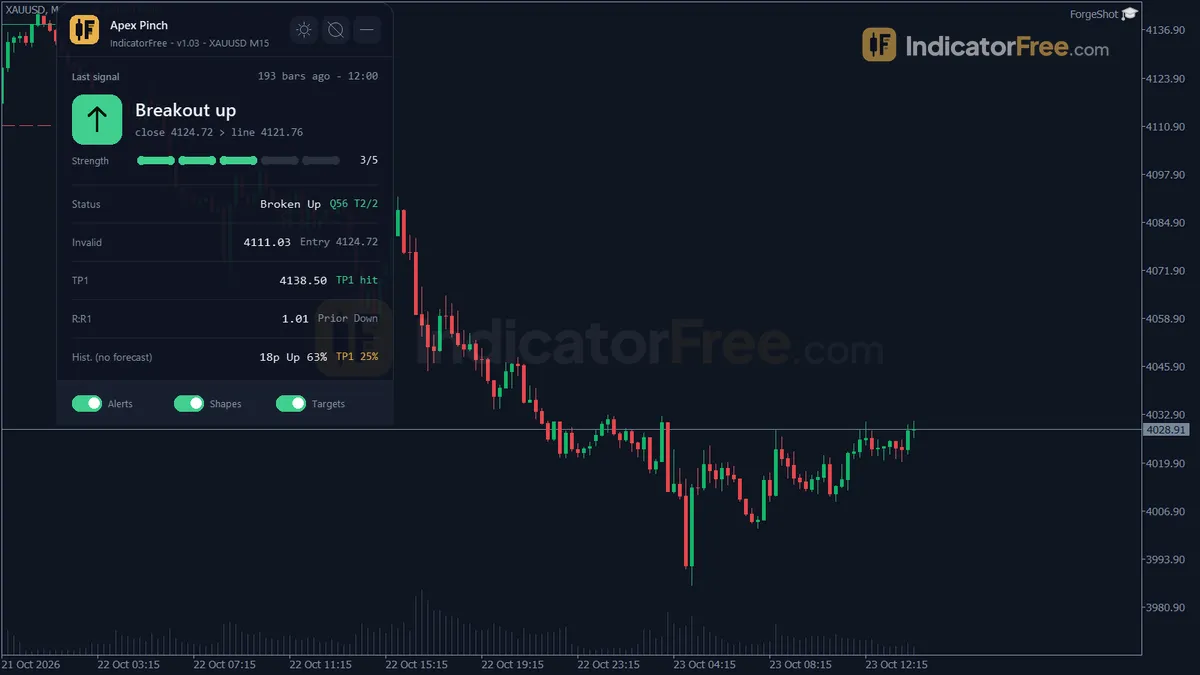
- Entry signalApex PinchAdds the entry signal: the moment to act once Demand Zone Finder has set the scene.
The Lab has not tested these combinations. Each tool is tested on its own; the card only lines up what each one says. Free members get 2 new tools a day. If one has to wait until tomorrow, install BlackBox to raise the limit to 5 a day (20 on a live account).
FAQ
Does Demand Zone Finder repaint?
Repaint: not tested. This indicator draws zone, panel, which the IndicatorFree harness cannot read through iCustom().
Why can’t my EA read the zones?
Zones and the panel are chart objects, not indicator buffers, so iCustom() does not return them.
How do I get alerts on my phone?
Enter your MetaQuotes ID under Tools → Options → Notifications, tick "Enable push notifications", and keep the push alert input on.
Which timeframe should I use Demand Zone Finder on?
Its thresholds are in ATR, so you can attach it to any timeframe and the zones scale with the chart's volatility. The Lab facts do not say which timeframes were tested. If you work on a low timeframe, turn on the HTF zones so the larger demand areas stay in view.
Is a demand zone here basically an order block?
The ideas overlap: both mark where price was before a strong move up. This tool defines its box by its own rules: a base of small-bodied bars followed by a rally of at least `ImpulseATRMultiple` ATR. None of its inputs use volume.
Does it draw supply zones for short trades?
No. Version 1.00 draws demand zones only. For short setups you need a separate supply-zone tool.
Does it work on gold, indices or crypto, not just forex pairs?
The rules use ATR rather than fixed pips, so the same defaults adapt to any symbol's price scale. The Lab facts do not list which symbols it was run on. Check the box sizes on your instrument before you rely on it.
Changelog
- 1.00Initial release: base + ATR rally demand zone detection (catches both Rally-Base-Rally and Drop-Base-Rally structures), quantified Weak/Medium/Strong strength grade, managed zone life cycle (touch counter, age-based. · 2026-10-05
Final verdict
Verdict: a disciplined zone marker, not a signal system
Demand Zone Finder does the tedious part of demand-zone trading. It finds the base, measures the rally in ATR, grades it, counts touches and removes old zones. It follows the fixed rules shown in the life-cycle figure and judges every event on closed bars. The Lab ran it on MT5 build 6230. Judge it as a chart-marking assistant.
The comparison below shows when it fits your trading and when it does not.
- –You trade long pullbacks and want zones marked by fixed rules
- –You want a first-touch alert instead of watching charts
- –You want H4 demand zones visible on an M15 or H1 chart
- –You mainly trade short setups
- –You trade the start of a rally; the box arrives after the rally bars close
Starting settings to try
The defaults are a balanced starting point. The Lab did not test any of the changes below, so compare each one with the default on your own symbol before you rely on it.
- Fewer, cleaner zones: set
ImpulseATRMultipleto 2.0. This removes Weak zones by definition. - Fresh zones only: set
MaxTouchesto 1. A zone becomes Invalid after its first touch, so every active (non-faded) box is untested. - Lower-timeframe charts (M5-M15): turn on
ShowHTFZonewithHTFTimeframeat H1 or H4. Give more weight to chart zones that sit inside an HTF zone. - Wide, messy bases: set
UseWickBoundaryto false for thinner, body-based boxes. This gives you a tighter area to work with.
Leave AlertOnBreak off until you know what you would do with a break. Most traders only need the new-zone and first-touch alerts.