Lot Size Calculator
Free Lot Size Calculator indicator MT5: drag a stop line, get lots from your broker's tick value and tick size. Lab-tested on MT5 build 6230.
- Repainted
- Not tested
- Signals / week
- —
- Tested on
- —
- Tested
- 2026-10-10
Overview
The Lot Size Calculator is a free MT5 indicator that puts a draggable stop-loss line on your main chart. It turns the distance to that line into a lot size. It reads tick value and tick size from your broker, so gold and EURUSD are sized correctly without pip tables. The Lab tested version 1.00 on MT5 build 6230 on 2026-10-10. It is for traders who place trades by hand and want each one sized to a set risk before they click Buy or Sell.
What it puts on your chart
- Stop line: a horizontal line on the price chart. You drag it to where your stop loss goes. You can also set it a fixed number of pips from the entry (see How it works).
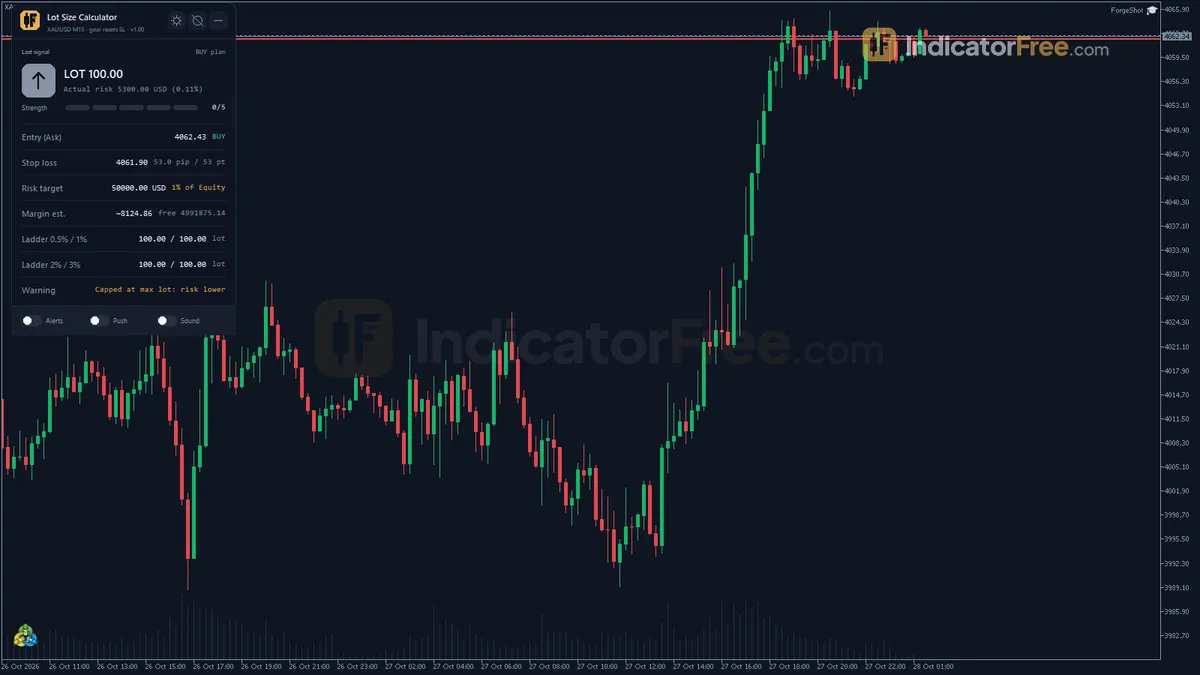
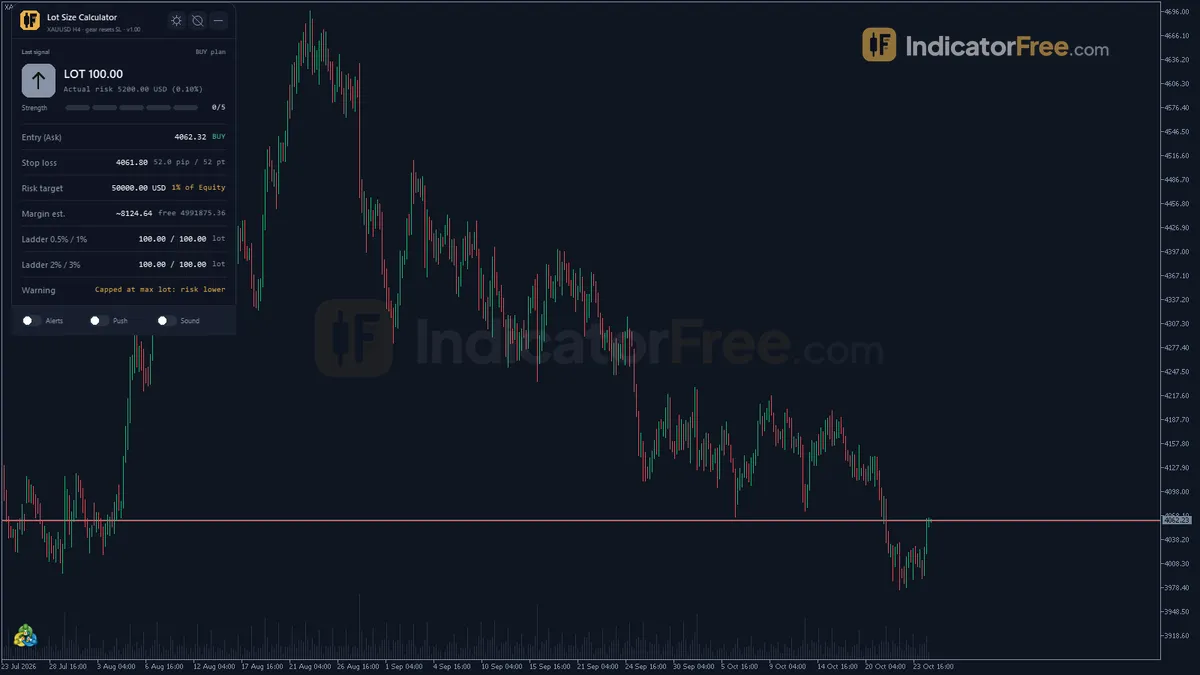
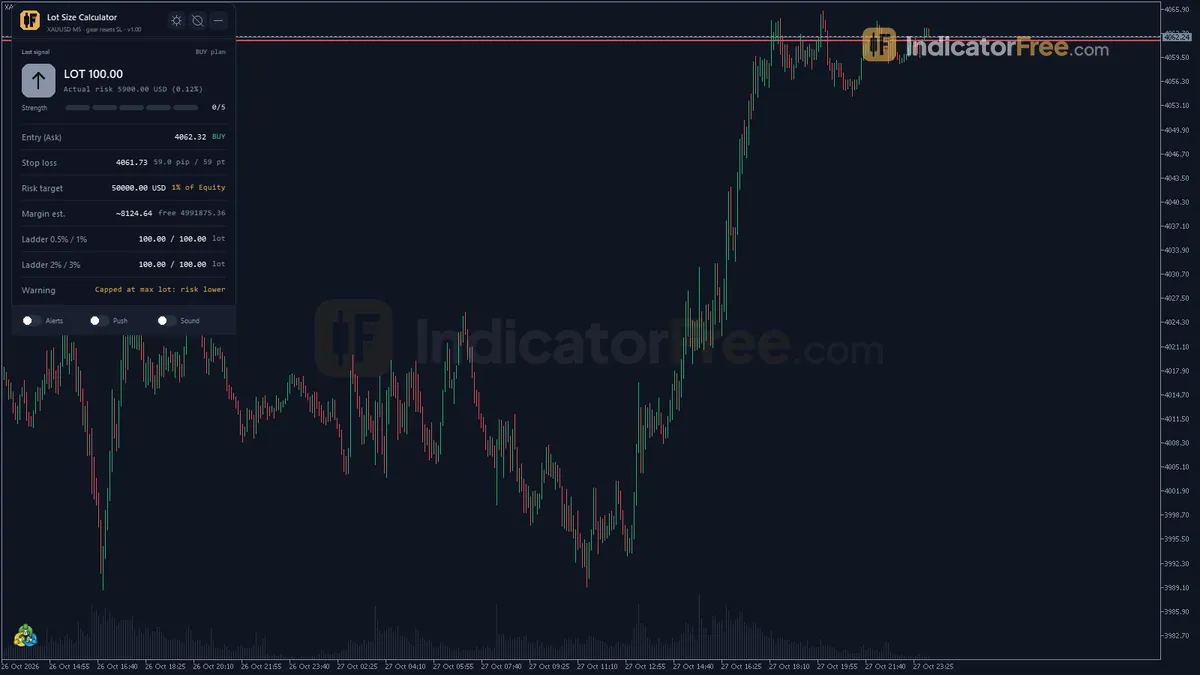
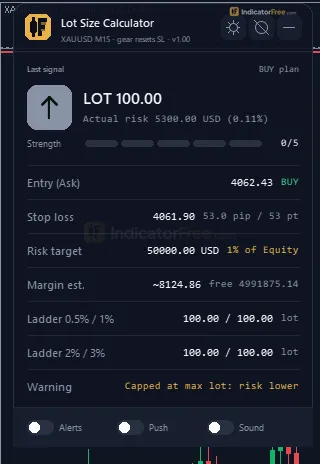
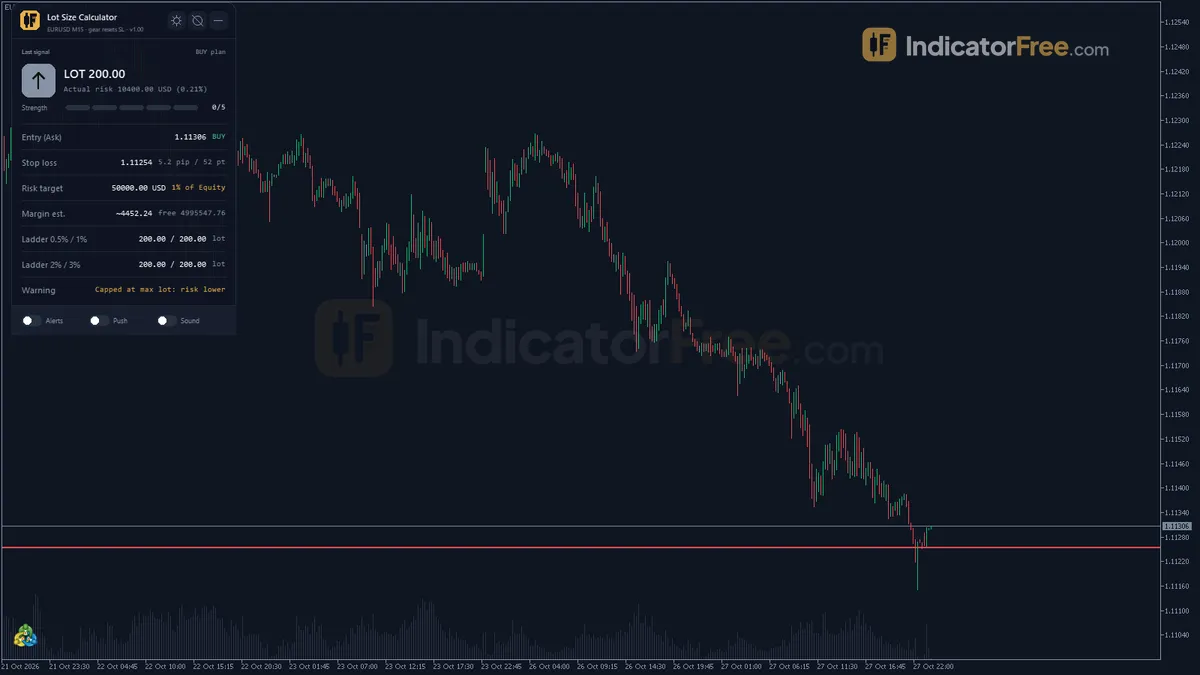
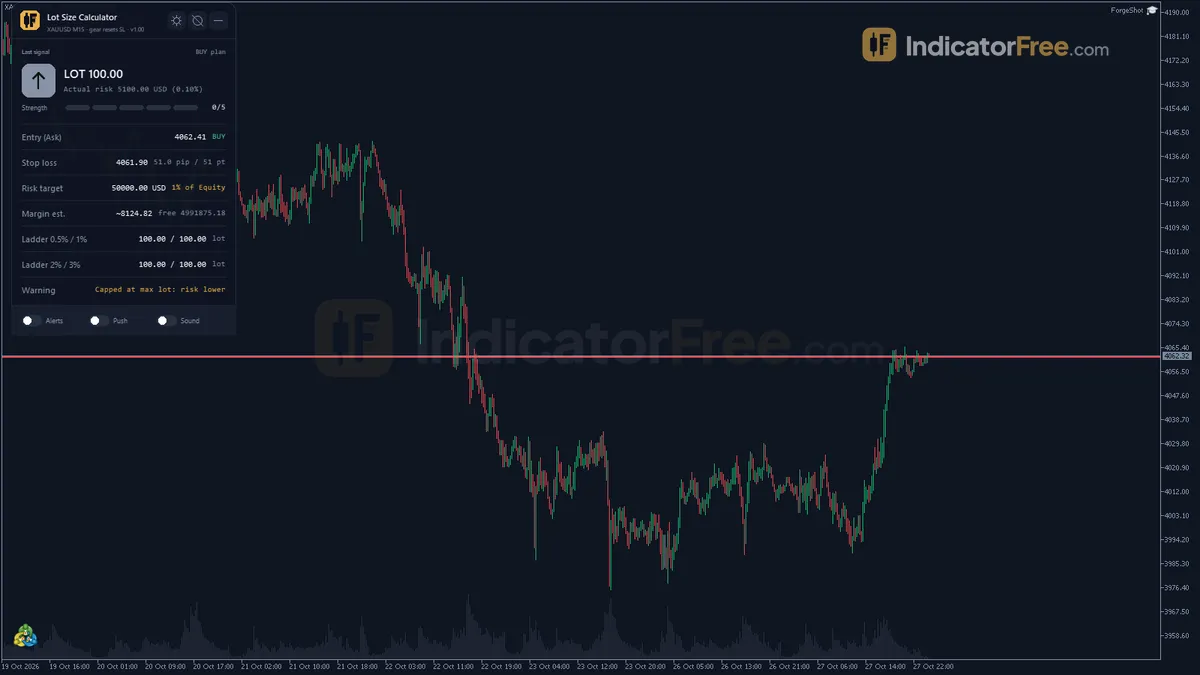
- Panel: a block in the chart corner you choose. It shows the lot size, the real risk (the money you would lose at the stop after the lot is rounded), the required margin, free margin after entry, and a lot ladder. The ladder is one row of lot sizes at four risk levels.
It draws no arrows and gives no buy or sell calls. The Buy or Sell plan only decides which price counts as the entry.
What the Lab checked, and what it means for you
The Lab attached version 1.00 (142 KB) on MT5 build 6230 on 2026-10-10 and took screenshots on EURUSD, on H4 and M5, of the inputs window at default settings, and of the panel close up. The panel close-up screenshot shows the real panel this page describes. The test records do not include a win rate, a repaint count or any accuracy score. Those tests measure trade signals, and this tool gives none. What the facts do record is how it calculates the lot:
- It uses the broker's own tick value and tick size for the symbol. So the same stop distance gives different lots on different symbols, as it should. You don't need to look up pip values yourself.
- It rounds down to the broker's lot step. Rounding only ever makes the lot smaller, never larger.
- It clamps the lot to the broker's minimum and maximum volume, so the lot always fits the broker's lot step and min/max volume. The one exception is the minimum-volume clamp: if your risk calls for less than the broker's minimum lot, the panel shows the minimum, which risks more, and flags a warning.
Who should use it, and who can skip it
It suits discretionary traders who set stops at chart levels and risk a fixed percent or a fixed amount on each trade. It helps most if you trade symbols with very different tick values, such as gold and a major forex pair.
The "Use it or skip it" figure in the verdict lists when you can skip it.
How it works
- 1Reads the current price: the entry is the ask for a buy plan and the bid for a sell plan.Inputs: PlanDirection
- 2Takes the stop from a draggable line or fixed pips and measures its distance.
Distance = abs(Entry - SL)Inputs: InputSLMode, InputManualSLPips, InputFollowPrice - 3Sets the money to risk: a percent of balance, equity or free margin, or a fixed amount.
Risk money = Base x Risk% / 100Inputs: InputRiskMode, InputRiskPercent, InputFixedRiskMoney, InputRiskBasis - 4Converts risk to lots using tick value, rounds down to the lot step, and clamps to broker limits.
Lots = Risk money / (Distance x Tick value / Tick size) - 5Shows the real risk, required margin, free margin after entry, and lot sizes for each risk step in the ladder.
Margin = Lots x Contract size x Entry / LeverageInputs: InputLadderPercents
Specifications
- Platform
- MetaTrader 5
- Version
- 1.00
- Type
- Indicator
- Window
- Main chart
- Draws
- 1 zone, 1 panel
- Alerts
- popup, push, sound
- Repaints
- not tested
- Inputs
- 17
- Tested on
- MT5 build 6230 · 2026-10-10
Repaint test
Repaint: not tested. This indicator draws zone, panel, which the IndicatorFree harness cannot read through iCustom().
IndicatorFree — tested 2026-10-10 · MT5 build 6230. Results come from historical data, not live trading, and do not guarantee future results.
What it draws
- Rectangles (undefined) drawn as chart objects, not buffers — they are not readable by iCustom() in an EA.
- An on-chart panel (Signal); values shown in the panel are not exposed as buffers.
Inputs
| Input | Default | What it does |
|---|---|---|
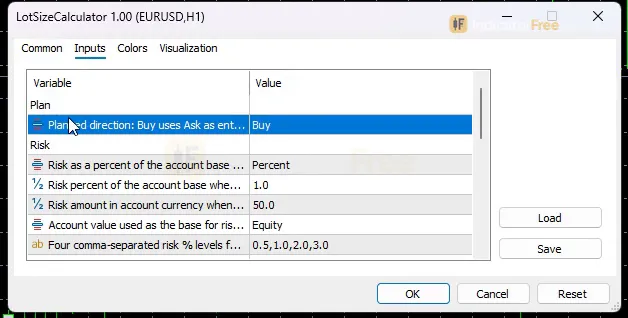
| PlanDirection | Buy | Planned direction: Buy uses Ask as entry, Sell uses Bid |
| InputRiskMode | Percent | Risk as a percent of the account base or as a fixed money amount |
| InputRiskPercent | 1 | Risk percent of the account base when risk mode is Percent (0.01-20) |
| InputFixedRiskMoney | 50 | Risk amount in account currency when risk mode is FixedMoney |
| InputRiskBasis | Equity | Account value used as the base for risk percent |
| InputLadderPercents | 0.5,1.0,2.0,3.0 | Four comma-separated risk % levels for the lot ladder row |
| InputSLMode | DragLine | Stop loss from the draggable chart line or from a pip distance |
| InputManualSLPips | 20 | Stop loss distance in pips when SL mode is ManualPips (1-2000) |
| InputFollowPrice | false | ManualPips only: fix the SL at each new bar open and show it as a line |
| EnableAlerts | false | Popup alert when a new warning appears (min lot, SL = entry, feed error...) |
| EnablePushNotification | false | Push notification on the same condition |
| EnableSound | false | Play a sound on the same condition |
| SoundFile | alert.wav | Sound file played when sound alerts are on |
| DashCorner | Left Upper | Chart corner for the panel |
| PanelScale | 1 | Panel size multiplier (DPI is applied automatically) |
| Theme | Dark | Chart color theme |
| RestoreTheme | true | Restore the original chart colors when removed |
How to read it
For the current price, the indicator works through five steps: All of them come from the Lab's description of the tool.
- 1Entry priceAsk for a Buy plan, Bid for a Sell plan (PlanDirection)
- 2Stop distanceDistance = abs(Entry - SL), from the drag line or fixed pips
- 3Risk moneyRisk money = Base x Risk% / 100, or a fixed amount
- 4LotsRisk money / (Distance x Tick value / Tick size), rounded down to the lot step, clamped to min/max volume
- 5PanelReal risk, margin (Lots x Contract size x Entry / Leverage), free margin after entry, lot ladder
Reading the stop line
With the default InputSLMode = DragLine, you drag the line to your stop level and the panel updates at once. The gap between the entry and the line is the stop distance used in the sizing formula. For a Buy plan, put the line below price. For a Sell plan, put it above. The illustration below shows a Buy plan.
Reading the panel
- Lots: the size to type into your order ticket.
- Real risk: what you would actually lose at the stop with that rounded lot. Check this line, not your input percent.
- Margin and free margin after entry: the margin uses Lots x Contract size x Entry / Leverage. Treat it as an estimate and compare it with your broker's own figure, especially on symbols other than forex.
- Lot ladder: the lots at each percent in InputLadderPercents (0.5, 1.0, 2.0 and 3.0 by default). It lets you see what a smaller or larger risk would mean without changing any inputs.
Inputs to change first
- PlanDirection (default Buy). Set it to match the trade you plan. A Sell plan measures from the Bid, a Buy plan from the Ask.
- InputRiskMode (default Percent) with InputRiskPercent (default 1, allowed 0.01-20), or switch to FixedMoney and set InputFixedRiskMoney (default 50, in your account currency).
- InputRiskBasis (default Equity). Balance, Equity or Free margin. With Equity, losing open trades reduce the base, so new lots come out smaller. Choose Balance if you want the same base whatever your open positions are doing.
- InputSLMode = ManualPips with InputManualSLPips (default 20, allowed 1-2000) if you use fixed stops instead of chart levels. With InputFollowPrice on, the stop is fixed at each new bar open and drawn as a line.
- InputLadderPercents: enter four comma-separated percents that fit your own risk levels.
- Display settings: DashCorner, PanelScale (DPI is applied automatically) and Theme. Theme changes your chart colors. With RestoreTheme on (the default), your original colors come back when you remove the indicator.
Warnings and alerts
The panel shows a warning when something stops the calculation from being clean. Examples are a lot clamped to the broker's minimum, a stop placed at the entry price, or a price feed error. Alerts for these warnings are all off by default. EnableAlerts shows a popup in the MT5 alert window, EnablePushNotification sends the same alert to your phone, and EnableSound plays SoundFile (default alert.wav). They only fire when a new warning appears.
Decision rule before each trade
- Drag the line to the price where your trade idea is wrong. Don't move it to get a nicer lot.
- Take the trade only if the real risk is at or below your target and free margin after entry stays comfortably positive.
- If the min-lot warning appears, the broker's smallest lot already risks more than your target at that stop. Skip the trade or find a setup with a closer stop. Widening the stop does not help.
A common misread
The lot shown is correct only for the price at that moment. In DragLine mode the stop stays fixed while the price moves, so the distance and the lot change with every tick. If you read the panel, wait, and then enter, the price may have moved closer to or further from your line. Read the panel again right before you click.
Installation
- 1Download LotSizeCalculator.ex5 from the button above (Google Drive).
- 2In MetaTrader 5: File → Open Data Folder → MQL5 → Indicators. Copy LotSizeCalculator.ex5 there.
- 3Restart MT5 or right-click Indicators in Navigator → Refresh.
- 4Drag Lot Size Calculator onto a chart. For push alerts, enable "Allow push notifications" under Tools → Options → Notifications.
- Tested on MT5 build 6230.
Key terms and guides
- Broker
- A broker is the company that opens your trading account, holds your deposit, quotes you buy and sell prices and carries out your orders. It earns money through spreads, commissions or overnight fees.
- Lot size
- Lot size is the volume of a trade, counted in lots. In forex, one standard lot is 100,000 units of the base currency, and the lot size you choose sets how much money each pip of price movement is worth.
- Horizontal level
- A horizontal level is a price where the market has turned more than once, drawn as a flat line across the chart. Traders use it to plan entries, stop losses and targets.
- Margin
- Margin is the part of your account a broker locks as a deposit while you hold a leveraged trade. It equals the full value of the trade divided by your leverage, and it is released when the trade closes.
- Stop loss
- A stop loss is an order attached to a trade that closes it automatically when price moves against you to a level you chose in advance. It fixes the most you plan to lose on that trade before you open it. You enter it as a price in the order window.
- Position Size
- Position size is how many units or lots you buy or sell in one trade. You set it from the money you are willing to lose and the distance to your stop-loss, so a stop that gets hit costs a planned amount.
More on this subject: Oscillators & momentum guide, terms and tools
User reviews
No reviews yet. Members who download the tool can review it here.
Sign in and download the tool to review it.
Build a checklist with it
Lot Size Calculator does one job on the chart: risk / volatility. Put it on the same chart as the tools below and the IndicatorFree panels merge into one checklist card, ordered trend, zone, signal, risk.
- Trend / contextKijun Sen LineAdds the trend side: which way the market leans before you act on Lot Size Calculator.
- Entry signalChange of CharacterAdds the entry signal: the moment to act once Lot Size Calculator has set the scene.
The Lab has not tested these combinations. Each tool is tested on its own; the card only lines up what each one says. Free members get 2 new tools a day. If one has to wait until tomorrow, install BlackBox to raise the limit to 5 a day (20 on a live account).
FAQ
Does Lot Size Calculator repaint?
Repaint: not tested. This indicator draws zone, panel, which the IndicatorFree harness cannot read through iCustom().
Why can’t my EA read the zones?
Zones and the panel are chart objects, not indicator buffers, so iCustom() does not return them.
How do I get alerts on my phone?
Enter your MetaQuotes ID under Tools → Options → Notifications, tick "Enable push notifications", and keep the push alert input on.
Does the Lot Size Calculator open trades for me?
No. It is an indicator, so it only calculates and displays. You type the lot from the panel into your own order ticket and set the stop at the line yourself.
Which symbols and timeframes does it work on?
It reads the tick value and tick size of whatever symbol the chart shows, so the math adjusts to each symbol. The Lab's screenshots show it on EURUSD and on H4 and M5. The timeframe only changes where you would put your stop, not how the lot is calculated.
Can I risk a fixed dollar amount instead of a percent?
Yes. Set InputRiskMode to FixedMoney and enter the amount in InputFixedRiskMoney (default 50, in your account currency). The ladder row is driven by InputLadderPercents.
Is there an MT4 version of the Lot Size Calculator?
This page covers the MT5 version only. The Lab tested it on MT5 build 6230 and has no MT4 test results for it.
How do I get its warnings on my phone?
Turn on EnablePushNotification. MT5 must already be linked to the mobile app through the terminal's notification settings. You get a push only when a new warning appears, for example a lot clamped to the broker's minimum or a stop placed at the entry price.
Changelog
- 1.00Initial release: drag-to-set stop loss line with lot size computed from the broker's real tick value and tick size, rounded down to the lot step and clamped to min/max volume. · 2026-10-10
Final verdict
Where it earns its place
The tool does one job. It turns a stop you can see on the chart into a lot size that uses the broker's real tick value, so you don't have to work out pip values in your head. The clearest risk control on the panel is the real-risk figure after rounding. The lot ladder is useful when you scale risk up or down depending on how good a setup is. Judge it on whether the calculation fits how you trade, because the Lab measured no win rate for it and there is none to measure.
Limits to know
- It sizes one planned trade at a time. Nothing in its method adds up the risk of trades you already have open, so keep track of total exposure yourself.
- The margin figure comes from a simple formula. Your broker's own margin rules decide the real margin.
- The Lab tested it on a single build (6230). After a terminal update, compare one lot from the panel with a manual calculation before you rely on it.
- –You place manual trades with a stop at a chart level
- –You risk a set percent or amount per trade
- –You switch between symbols with different tick values
- –You want the rounded real risk before you enter
- –An EA already sizes your trades
- –You want entry signals or arrows
- –You need total risk across all open positions
- –You trade without a stop loss
Settings to start with
The defaults (1% risk, Equity basis, DragLine stop) are a reasonable setup for most discretionary traders. If you are still building a track record, try InputRiskPercent 0.5. This is a starting point the Lab has not tested, so compare it with the default. If you trade fixed-pip stops on lower timeframes, try InputSLMode ManualPips with InputFollowPrice on so the stop holds still for the whole bar. This is also untested by the Lab, so compare it with DragLine.
An idea for a pair
This tool tells you how much to trade, not where the stop belongs. Order Block Locator or Breakout Zone Finder can give you a box to drag the stop line just beyond, and this calculator then sizes the trade. The Lab has not tested the pair, so treat it as an idea to try.